

How to Add Music to Instagram Posts in 2026
 Kata
20 May 2026
Kata
20 May 2026 
Adding music to your Instagram content is one of the quickest ways to make your posts more engaging. By now you can add music to all content formats – feed posts, carousels, Reels, and Stories can all sing along. And if you’re scheduling Reels through Metricool, you can add trending audio to your Reels and Trial Reels directly before publishing.
Here’s everything you need to know.
How to Add a Song to Your Instagram Feed Posts Natively
Let’s start with how you can add music to your Instagram posts directly in the app.
You can add songs to standard photo or video posts on mobile. There are two ways to get there depending on your app version.
Option 1: From the post composer
- Open Instagram and tap the “+” icon
- Select your photo or video and tap “Next”
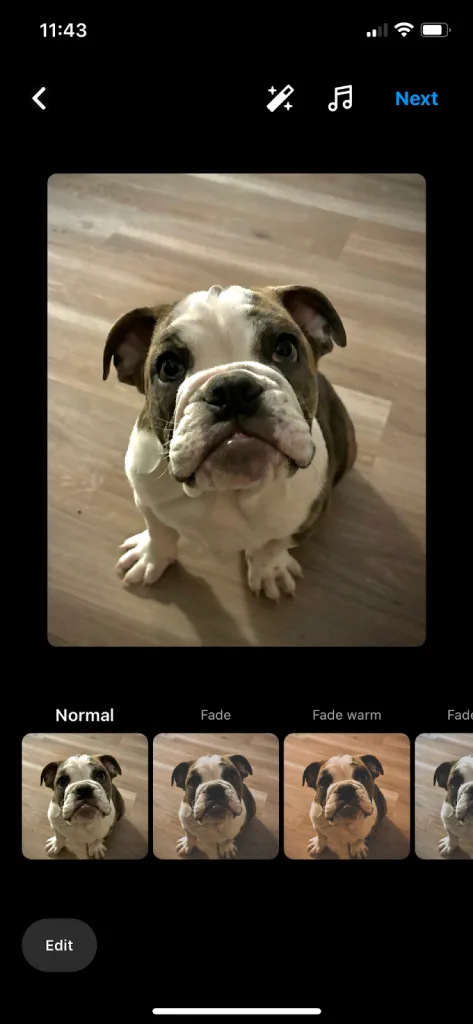
- Apply any filters or edits, then tap “Next” again
- Tap the Music icon (or “Add music”) at the top of the screen
- Browse recommended tracks, search for a specific song, or pick from your saved audio
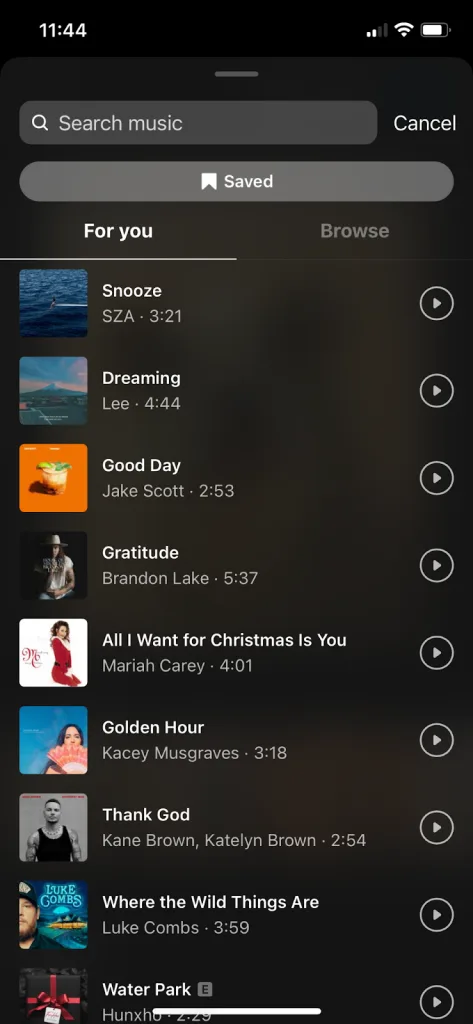
- Choose your song, use the slider to choose the clip you want, and preview with the play button.
- Tap “Done”, add your caption, location, tags, and hit “Share”.
Option 2: From the caption screen
On some versions of the app, the music option appears on the final screen instead:
- Open Instagram, select what content you want to post, and tap “Next” through to the caption page.
- Tap “Add music”
- Search or browse for a track, then choose the clip and duration
- Finish your caption and settings, then hit “Share”
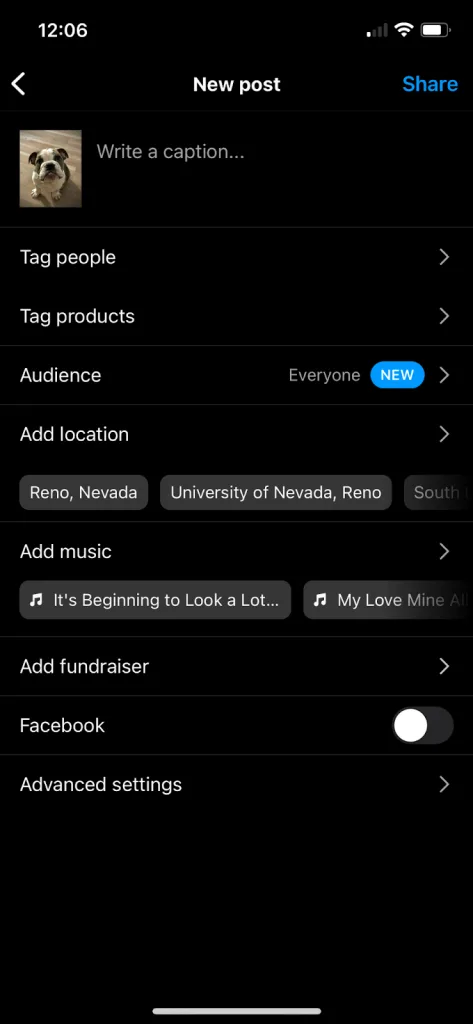
📝 Business account note: Business accounts have more limited access to popular commercial tracks and rely heavily on Meta’s Sound Collection – thousands of songs cleared for commercial use. Creator and Personal accounts typically see a broader licensed library in the same interface. If you’re managing a brand account and can’t find a trending song that appears freely on Reels or TikTok, it’s because it isn’t cleared for your account’s usage rights.
How to Add Music to Instagram Carousels
Adding music to a carousel (multiple photos and/or videos) follows the same flow as a single post. One track plays across the entire swipe.
- Open Instagram and tap the “+” icon
- Turn on multiple selection and choose your photos or videos in order
- Tap “Next”, apply any edits, then tap “Next” again
- Tap “Add music” or the Music icon and select your track
- Adjust the clip with the slider, tap “Done”, write your caption, and hit “Share”
📝 Note: Adding music to feed posts and carousels is currently mobile-only; not available in the web or desktop uploader.
How to Add Music to Instagram Reels
To add music natively inside Instagram when creating a Reel:
- Open Instagram and tap “+” > Reel
- Upload or record your video
- Tap the Music icon and search or browse for a track
- Select the part of the song you want to include
- Finish editing and share
Business accounts will see tracks from the commercial-use library. Instagram will recommend songs suitable for commercial use when you’re on a Business account. Keep in mind the selection will be smaller than what you’d see on a Creator or Personal account – this is due to commercial licensing, not a bug.
How to Add Music to Instagram Stories
- Open Instagram and swipe right or tap “+” > Story
- Take or choose your photo or video
- Tap the Sticker icon at the top
- Select the Music sticker
- Browse by For You, mood, genre, or search for a specific track
- Choose the clip you want and adjust the sticker position
- Share to Your Story or Close Friends
Can You Add or Change Music After Posting?
By default, you can’t add music to a post that was published without audio, the feature is built into the posting flow, not the editing flow. That said, Instagram has been testing options to change or remove music on posts that already have a track:
- Some users see an Edit option on their post, then Change music or Remove music to swap or delete the track
- This isn’t available to everyone and varies by region, account type, and app version
If you can’t edit the music on a published post, here are your options:
- Repurpose to Stories: Open the post, tap the send icon → “Add post to your story” → add music using the Story Music sticker
- Repost with music: Copy your caption, archive or delete the original post, then upload it again and add music during the posting flow. You’ll lose the original likes and comments, but the track will be there from the start
And if you’re planning your content in advance, here’s an even better option to add music to your Instagram posts.
How to Schedule Instagram Reels with Audio Using Metricool
Scheduling Reels with trending audio required a manual workaround before. You needed to schedule the Reel first, then open Instagram after publishing to add the music by hand. This friction is gone now.
As of May 2026, you can add audio directly to your Reels and Trial Reels from Metricool before scheduling, and your Reel publishes with the audio already attached.
How to add audio when scheduling a Reel in Metricool:
- In Planning, create a new Instagram Reel
- Upload your video
- Add your caption, hashtags, location, and any other settings
- In the “Instagram presets” section, click “Add audio”
- Browse the library:
- Use the search bar to find a specific track
- Filter by type: All, Music, or Original audio
- Each track shows title, artist, duration, and thumbnail
- Click the play button to preview before selecting
- Choose the volume of the song – a handy option if you’re also narrating the video and want the track to play in the background only
- Click Save to apply
- Set your date and time, enable auto-publish, and click Schedule
Your Reel will publish with the selected audio and you’ll save the extra steps.
⚠️ Facebook Login required:
This feature only works if your Instagram account is connected via Facebook. If you’re connected via Instagram Login only, you’ll see a tooltip in the audio selector instead.
What’s in the audio library:
- Music tracks from Meta’s Sound Collection, licensed for third-party publishing
- Original sounds uploaded by other creators
Current limitations:
- Web only: mobile app support is planned
- Reels only: not available for Stories or feed posts
- No audio trimming: audio starts from second 0
- Audio selection may be smaller than what’s available natively in Instagram
If the audio you want isn’t available in Metricool’s library, you can still schedule the Reel and publish manually via notification to add the audio natively in Instagram.
✨Ready to put everything you’ve learnt into practice?
Start with one format. Add a trending track to your next Reel or Trial Reel and see how your audience responds. And if you want to plan and schedule your Instagram content even months ahead of time, including audio, Metricool has you covered.
