

How to Upload Photos to Instagram (+ How the Pros Do It)
 Kalum
23 October 2026
Kalum
23 October 2026 
Did you know that there is more than one way to post photos on Instagram? This comprehensive guide breaks down how to add photos to Instagram step by step using mobile apps and desktop browsers, how top creators optimize their publishing workflow, and how to post photos on Instagram with Metricool for effortless content scheduling.
How to Upload Photos to Instagram Using the Mobile App
1. Publishing a Single Feed Photo
- Open Instagram and tap the + icon at the bottom center or top right of your screen.
- Select Post from the bottom menu options.
- Choose the image you want to publish from your gallery.
- Tap the Expand / Aspect Ratio icon (two opposing arrows) in the bottom-left corner of the image preview window to choose between original, square (1:1), portrait (4:5), or horizontal (1.91:1) formatting.
- Tap Next in the top-right corner to open the editing screen. Apply native filters or adjust visual settings like brightness, contrast, and saturation if needed.
- Tap Next to reach the final sharing screen. Write your caption, add relevant hashtags, tag other user accounts, add location details, and set accessibility alt text under Advanced Settings.
- Tap Share to publish your photo immediately to your main profile grid and follower feeds.
2. Publishing a Multi-Photo Carousel
Creating a carousel allows you to share up to 20 images or video clips in a single, swipeable post, which is great for visibility. In our 2026 Instagram Study, we found that carousels receive the most views out of all Instagram formats
- Tap + and select Post.
- Select the multiple stacked-squares icon located on the right side of the media preview area.
- Choose up to 20 photos in the order you want them to appear in the carousel sequence. (Note that all slides in a carousel inherit the aspect ratio of the very first photo selected. Make sure your first slide sets the desired shape (preferably portrait 4:5) for the entire set.)
- Tap Next to apply filters individually or across all slides simultaneously.
- Complete your caption, location tag, and account tags, then tap Share.
How to Add Pictures on Instagram from Desktop (Mac & PC)
While Instagram originated as a mobile-first app, managing content on desktop computers is standard practice for marketing teams and photographers who edit photos in desktop software like Adobe Lightroom or Photoshop.
Step-by-Step Desktop Publishing
- Open your desktop web browser and go to instagram.com.
- Sign in to your Instagram professional or personal account.
- Click the + button located on the left-side navigation sidebar.
- A pop-up window labeled Create new post will appear. Click Select from computer or drag and drop your photo files directly from your desktop folder into the window.
- Click the Crop icon in the bottom-left corner of the media preview to adjust aspect ratio settings (Original, 1:1 Square, 4:5 Portrait, or 16:9 Horizontal).
- Click Next in the top-right corner to apply basic filters or visual adjustments (Brightness, Contrast, Fade, Saturation).
- Click Next to write your caption, select emoji, tag accounts by clicking on the image, specify location, and write descriptive alt text inside the Accessibility drop-down menu.
- Click Share to publish.
How to Add Photos on Instagram with Metricool
Managing social content across client accounts or multiple brand channels directly inside native mobile apps can quickly cause administrative clutter. Learning how to add photos on Instagram through Metricool streamlines your publishing calendar and gives you valuable optimization tools that native apps lack.
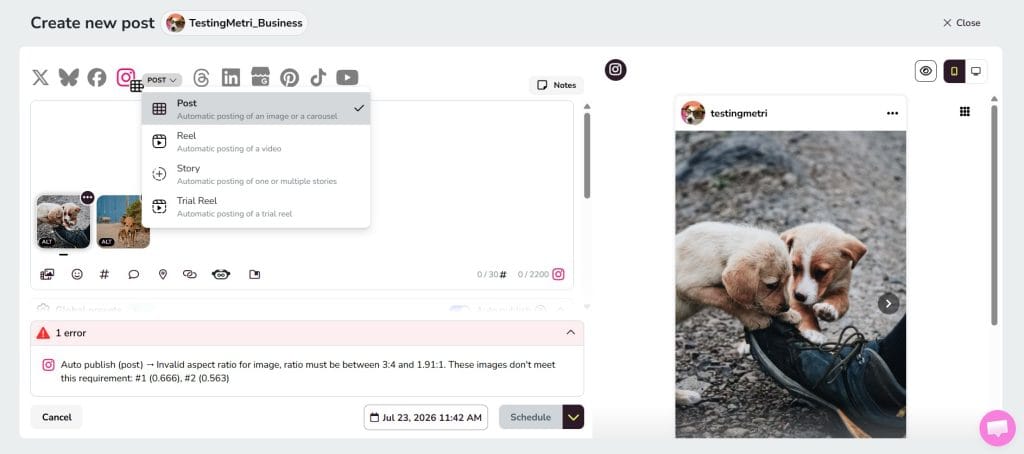
To post photos using Metricool, log into your Metricool workspace desktop dashboard or mobile app, select Planner from the top menu, and click Create Post. Select your connected Instagram profile, click Upload Media to add your image files, and write your caption inside the text editor. Metricool provides an interactive preview showing exactly how your photo will render in user feeds and allows you to adjust aspect ratios before scheduling.
Key Advantages of Scheduling Instagram Photos via Metricool
- Visual grid planner: Preview how upcoming photo uploads will look on your profile grid alongside published posts before going live, guaranteeing cohesive color aesthetics and visual balance.
- Best time to post heatmap: Metricool analyzes your follower activity history to highlight personalized peak engagement hours directly on your calendar, ensuring your photo posts publish when maximum followers are active online.
- Auto-publishing reliability: Automatically publish single photos, carousels, Stories, and Reels without needing manual push notification reminders on your phone.
- Multi-account workspaces: Switch seamlessly between multiple client profiles, manage team approval workflows, and store media assets in a centralized media library.
- Cross-channel distribution: Repurpose high-performing photo assets to Facebook, Pinterest, LinkedIn, and Google Business Profile in a single step.
How the Pros Prepare and Post Photos on Instagram
Professional social media managers, commercial photographers, and agencies follow precise preparation workflows to ensure every uploaded image maintains maximum visual quality and drives search discoverability.
1. Optimize Color Profiles for Mobile Screens
Digital cameras and desktop photo editing software often export files in Adobe RGB or ProPhoto RGB color spaces. However, mobile devices and social web browsers render images using the sRGB color space. Uploading a photo in Adobe RGB prompts Instagram’s algorithms to convert colors automatically, resulting in flat, washed-out tones. Always export final JPEG or PNG files using sRGB color profiles to preserve vibrant color accuracy.
2. Export at Full Resolution without Oversizing
Instagram resizes images wider than 1080 pixels down to a maximum width of 1080 pixels. If you upload a massive 24-megapixel file (e.g., 6000 × 4000 pixels), Instagram’s compression engine processes the file aggressively, introducing unwanted blurriness and visual artifacts. Export images at exact target dimensions (1080 × 1350 pixels for portrait) at 72 to 300 DPI, keeping file sizes under 8 MB for optimal server processing.
3. Build Seamless Panoramic Carousels
Agencies frequently create continuous, multi-slide panorama posts where a single wide image spans across multiple carousel cards.
- Create a canvas in editing software with a height of 1350 pixels and a width multiplied by the number of desired slides (e.g., a 3-slide panorama requires a 3240 × 1350 pixel canvas).
- Design your wide visual layout across the full canvas.
- Slice the wide image into equal 1080 × 1350 pixel sections.
- Upload the sliced images as a carousel, setting the first slide to 4:5 portrait format. When followers swipe through the carousel, the image flows seamlessly without visual breaks.
4. Implement Instagram Search Engine Optimization (SEO)
Instagram relies on visual recognition AI and text indexing to recommend posts across Search and Explore channels. Pros enhance discoverability using these optimization steps:
- Descriptive file names: Rename raw camera files (e.g., IMG_4920.jpg) to descriptive keyword terms (e.g., organic-coffee-beans-roasting.jpg) before uploading.
- Strategic caption keywords: Incorporate relevant search phrases naturally into the first two lines of your caption.
- Custom alt text: Manually write detailed accessibility alt text describing the image contents, subject placement, and brand context under Advanced Settings.
