

Alt Text Instagram: What Is It, Why It Matters, And How to Use It With Metricool
 Gretchen Oestreicher
08 April 2026
Gretchen Oestreicher
08 April 2026 
Alt text on Instagram can feel like one of those extra tasks you keep forgetting, especially when you’re already so focused on captions, visuals, and posting on time. The good news is that once you get the hang of it, adding alt text becomes quick and easy, and it makes your posts clearer and more accessible for everyone.
In this guide, we’ll show what alt text is, how it works on Instagram, tips and examples of good alt text, and how to speed up the alt text creation process with Metricool’s AI alt text generator.
What Is Alt Text on Instagram?
Alt text, short for alternative text, is a short description of an image.
It was originally created to help people who use screen readers understand visual content. Instead of seeing the image, they hear a description that explains what is happening.
On Instagram, alt text is added behind the image, not in the caption. The platform automatically generates basic descriptions using image recognition, but these are often vague. Writing your own alt text helps you make sure the description actually reflects what is most important in the image.
Think of it like quickly explaining your visual to someone over voice message.
How Does Alt Text Work on Instagram?
Alt text works quietly in the background. It’s not visible in the caption or on the post itself. Screen readers use it to describe images to people with visual impairments.
Instagram automatically generates alt text for images, but the results are usually very general. You might see descriptions like “people”, “nature”, or “text”.
Adding custom alt text on Instagram posts helps to better clarify the meaning of the image, especially when your visuals support tutorials, product posts, announcements, or educational content.
Alt text Instagram features currently support:
- Image posts
- Carousel posts, where each image can include its own description
- Reel cover images
Instagram Stories do not currently support alt text.
Alt text also gives Instagram more context about what your image contains. While it doesn’t directly boost reach, it helps the platform better understand your content.
How to Add Alt Text on Instagram
The process of adding alt text on Instagram is simple and takes only a few seconds.
You can add alt text either before publishing or after the post is live.
How to Add Alt Text on Instagram Before Publishing
- Upload your image on Instagram.
- Tap Next to move through the editing screen.
- Scroll down and select More Options.
- Select “Write alt text” at the bottom of the page.
- Write your alt text description in the text field.
- Tap Done and publish your post.
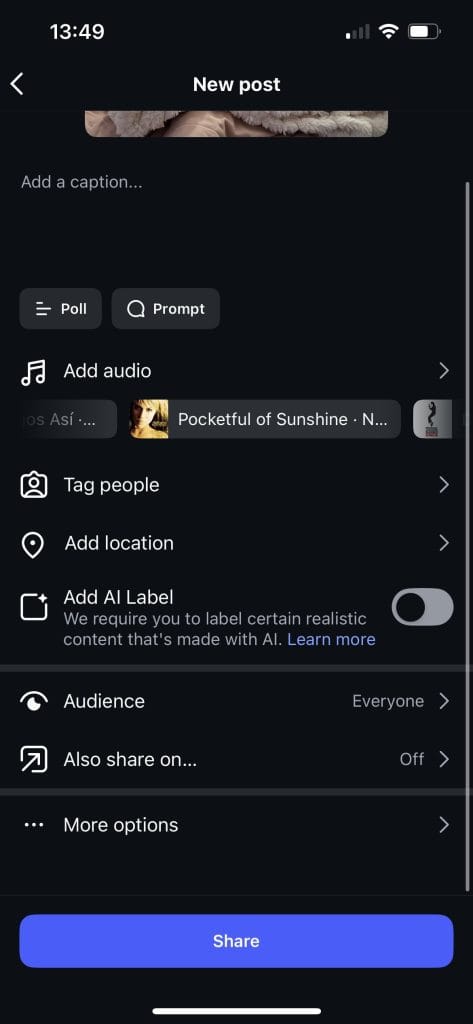
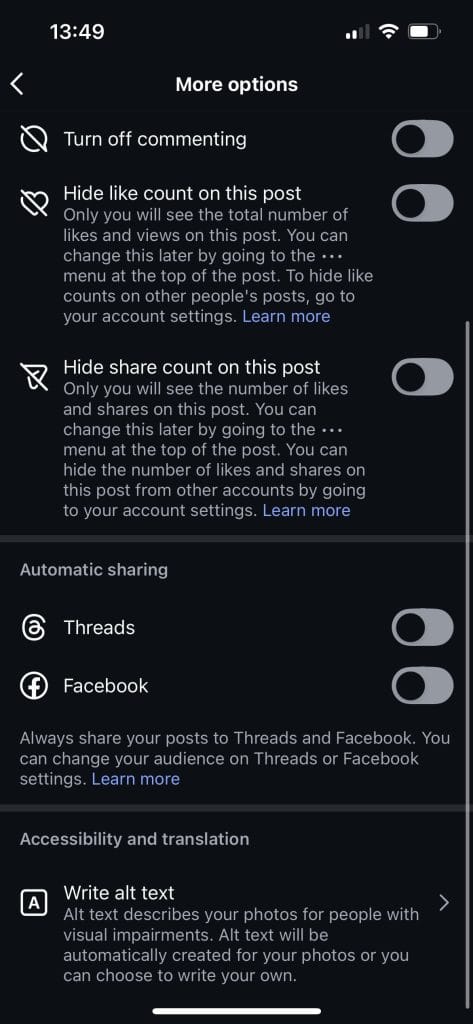
Adding alt text during the publishing process helps keep everything organized in one step.
Edit Alt Text on Instagram After Posting
If you need to edit alt text Instagram content after publishing, you can update the description without completely reposting.
- Open the published post.
- Tap the three dots in the top right corner.
- Select Edit.
- Tap the Aa icon in the lower right corner.
- Add or update the alt text.
- Tap Done to save changes.
This is useful if you’re improving accessibility across older posts or updating content that’s still getting traffic.
How to Add Alt Text to Instagram Posts With Metricool AI
If you schedule content regularly, writing alt text manually for every post can feel repetitive. This is where Metricool can help.
Metricool’s AI social media assistant can create image descriptions automatically when you upload visuals in the Planner.
Instead of starting from scratch, you get a solid first draft that you can quickly review and adjust.
To generate alt text on Metricool:
- Open the Planner in Metricool.
- Click Create Post.
- Select Instagram or another supported platform.
- Upload your image from your device, URL, or image bank.
- Click the three dots on the image preview.
- Select Generate Alt Text With AI.
- Review the generated description.
- Edit the text if needed.
- Click Accept.
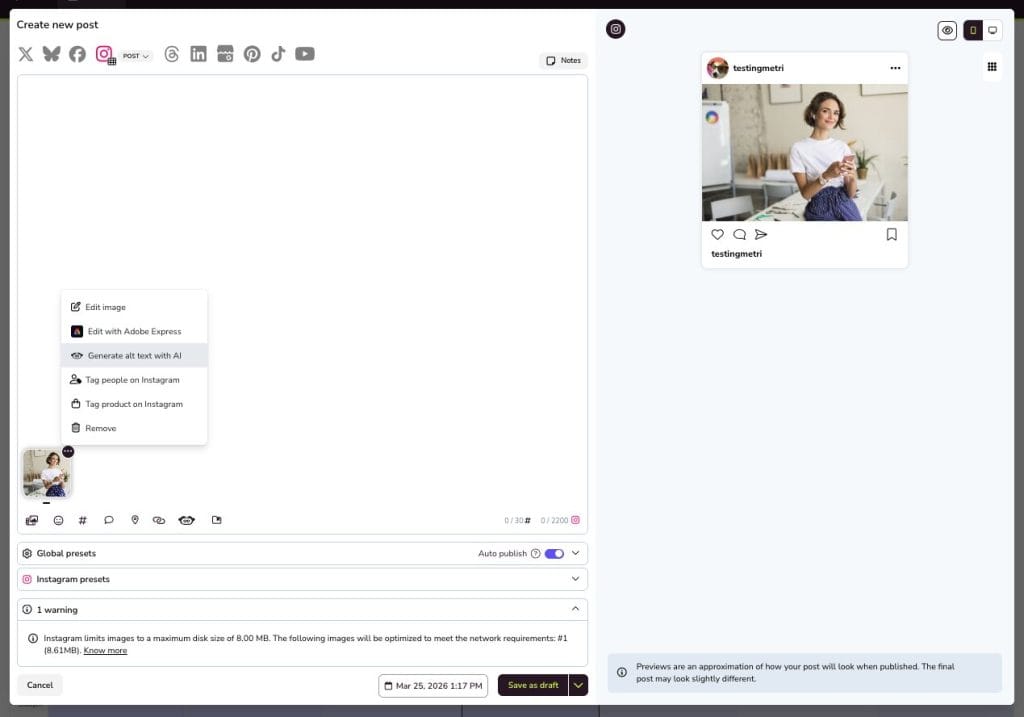
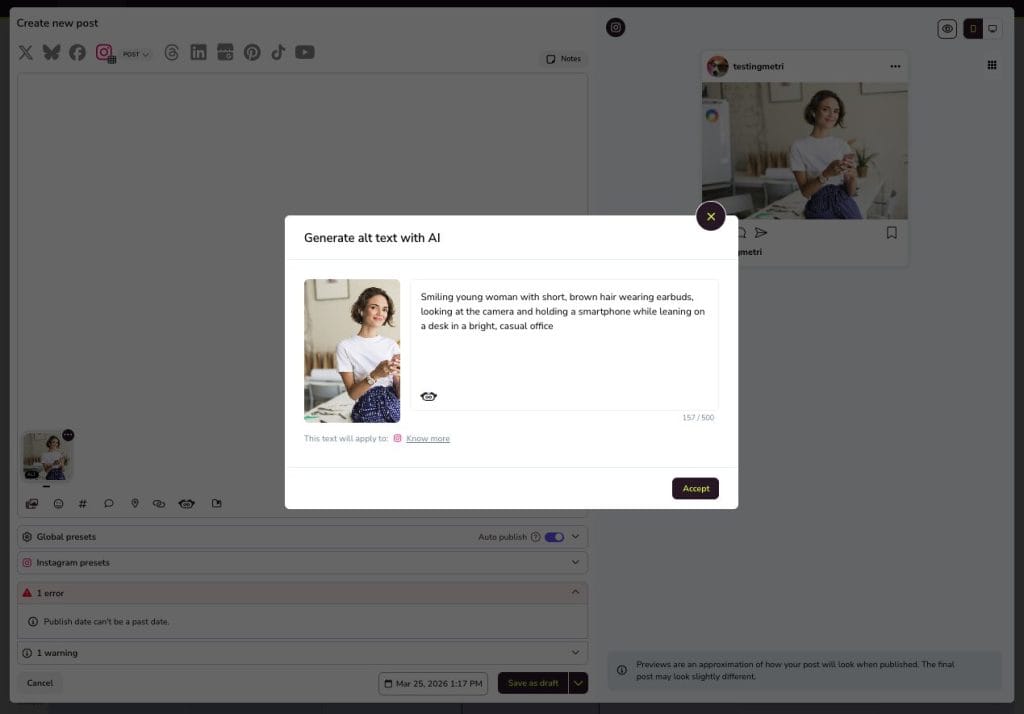
The alt text stays attached to the image, even if you duplicate or reschedule the post later, so your workflow stays consistent across campaigns.
With Metricool’s alt text generator you also get:
- Multilingual Support: Generate alt text in different languages when publishing content for global audiences.
- Quick Feedback Options: Rate AI suggestions to help improve future outputs.
- Cross Platform Publishing: Use alt text across Instagram, Facebook, Threads, LinkedIn, Pinterest, and X without repeating manual work.
Best Practices for Writing Alt Text Instagram Descriptions
Whether you write alt text manually or use AI, a few simple guidelines help keep descriptions useful and natural.
- Focus on the Most Important Details: Describe the elements that help someone understand the image.
- Keep It Clear and Short: Alt text usually works best in one sentence so try to avoid unnecessary details that do not add meaning, such as “Image of…”. Screen readers already identify visuals as images, so this wording is not needed.
- Include Context When It Helps: If the image supports a specific topic, mention relevant details. For example, “social media analytics dashboard showing engagement growth over one month”.
- Review AI Suggestions Before Publishing: AI saves time, but a quick review helps make sure descriptions always match your content and tone. Small edits can make alt text feel more human and more accurate.
Instagram Alt Text Examples
Alt text might seem like a small detail, but it makes your content more accessible and easier to understand. Here are three examples showing how a simple description can be improved with more detail, context, and clarity.
Alt Text Example 1 – Portrait Photo

🚫 Too Vague: Image of a woman smiling
✅ Improved: Smiling young woman with short, brown hair wearing earbuds, looking at the camera and holding a smartphone while leaning on a desk in a bright, casual office.
💡 Why This Works: This includes the subject’s appearance, activity, and surroundings.
Alt Text Example 2 – Digital Cartoon Art
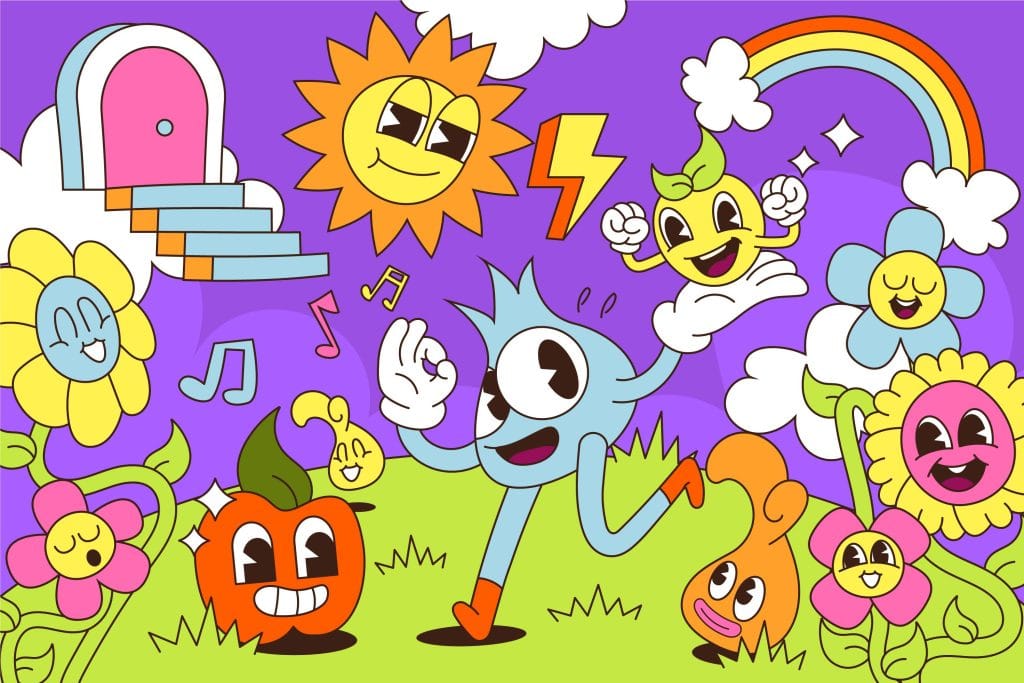
🚫 Too Vague: Dancing cartoon
✅ Improved: Cheerful cartoon: blue spiky character dancing with smiling sun, happy flowers, grinning apple and fruit beneath a rainbow and clouds.
💡 Why This Works: It highlights the main characters and colorful environment.
Alt Text Example 3 – Landscape Photo

🚫 Too Vague: City park
✅ Improved: Sunlit urban park with paved plaza, green lawns and trees, backed by tall modern skyscrapers and a building under construction.
💡 Why This Works: It describes both the foreground and background elements clearly.
Alt Text on Instagram: A Simple Way to Improve Content Quality
Adding alt text Instagram descriptions takes very little time, but it improves how people experience your content and helps create a more inclusive presence online.
If you publish often, using Metricool’s AI alt text generator helps you stay consistent without slowing down your workflow.
Small improvements like this help keep your content clear, organized, and accessible as your social media presence grows.
