

How to Use the Metricool Mobile App
 Gretchen Oestreicher
29 June 2026
Gretchen Oestreicher
29 June 2026 
Most of your social media work probably happens at a desk, but the work itself doesn’t wait for you to be there. A comment comes in while you’re out, or a client asks for a report when your laptop’s at home, and you still need a way to deal with it.
That’s what the Metricool mobile app is for. It puts publishing, analytics, your inbox, and your planning on your phone or tablet, so you can keep things moving when you’re away from your computer. This guide covers everything the app does, from installing it to sending a client report from your phone.
Metricool App Download
The app is available on both Android and iOS, so you can install it on whichever phone or tablet you use. Search for “Metricool” in the Google Play Store or the Apple App Store, or use the direct download links Metricool provides to skip the search.
How to Log In
Before you log in, make sure you have:
- An Active Metricool Account: a free or premium plan both work. If you haven’t registered yet, you can create an account directly from the app.
- The Latest App Version: check your app store for pending updates so you’re on the current version.
- A Stable Internet Connection: WiFi or mobile data, as long as it’s steady.
The login methods available to you depend on your device.
Logging In on Android
Android gives you three ways into your account:
- Email and Password: open the app, type your email and password, then tap Log In.
- Facebook: tap Connect with Facebook and authorize access in the Facebook window. You’ll come back to the app automatically. This option is available on free plans only.
- Google: tap Connect with Google, pick the account you signed up with, and authorize access.
If it’s your first time, you can create a new account from the app using any of these methods.
Logging In on iOS
On iPhone and iPad, you log in with your email and password. Open the app, enter your credentials, and tap Log In.
If you’ve turned on two-factor authentication, you’ll also enter a code from your authenticator app to finish.
Getting Around the App
Most of what you’ll use sits in the bar along the bottom of the screen. Anything you reach less often lives in the menu behind the three bars in the top left corner.
The Bottom Bar
The bottom bar holds the five things you’ll use most:
- Calendar: review your scheduled content and see what’s going out and when.
- Analytics: check how your accounts are performing.
- Plus button: create a new post. It sits in the middle of the bar.
- Inbox: read and reply to comments and messages.
- Brands: switch between your brands. You’ll find it next to the Inbox.
The Lefthand Menu
Tap the three bars in the top left to open the rest of the app, grouped under More and Help:
- More: Reports, My Tasks, and Library posts.
- Help: Help Center, Live Support Chat, and Settings.
Calendar
The Calendar is where you review your scheduled content, so you can see what’s lined up and when it’s going out.
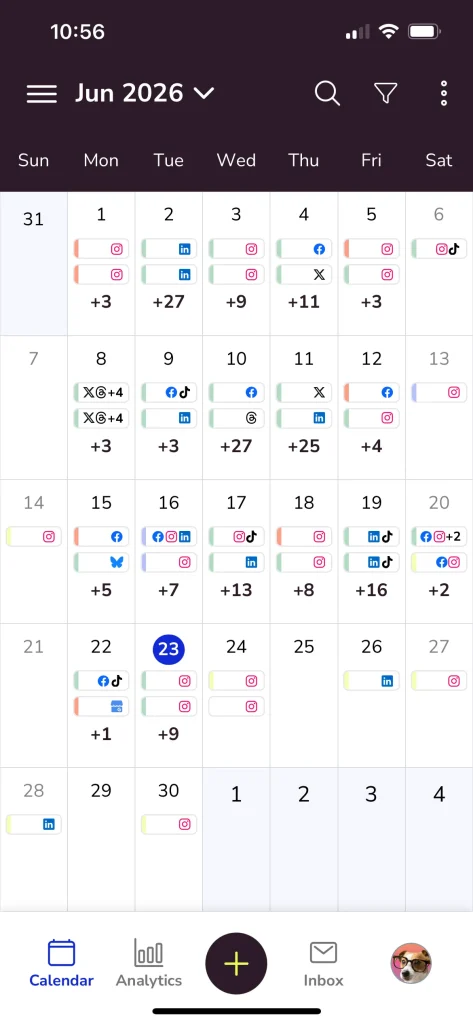
To create a post, tap the blue plus button in the middle of the bottom bar. Pick the networks you’re publishing to, upload your media (or choose from Metricool’s image and video banks), then add your caption, hashtags, and mentions. Tap Continue, choose your publishing options, and save. From there your post is scheduled for auto-publishing, sent to a reviewer, or saved as a draft.
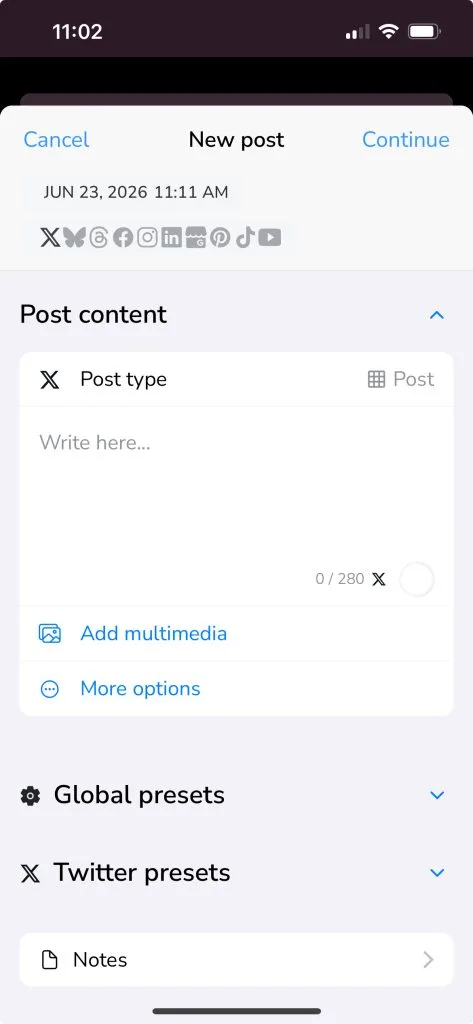
If you want to tidy up an image first, tap it after uploading to open Metricool’s editor. You can resize, change the aspect ratio, add a filter, insert emojis, draw on the image, and adjust brightness. To send a post for review instead, choose Send to Review after tapping Continue, add the reviewer’s email, and send it off. The reviewer gets an email with a link to approve or reject the content, and any rejected posts show up in My Tasks with their notes.
Analytics
This is your home base for performance data. From here you can review the metrics for every platform you’ve connected, add a new network, and download or revisit reports.
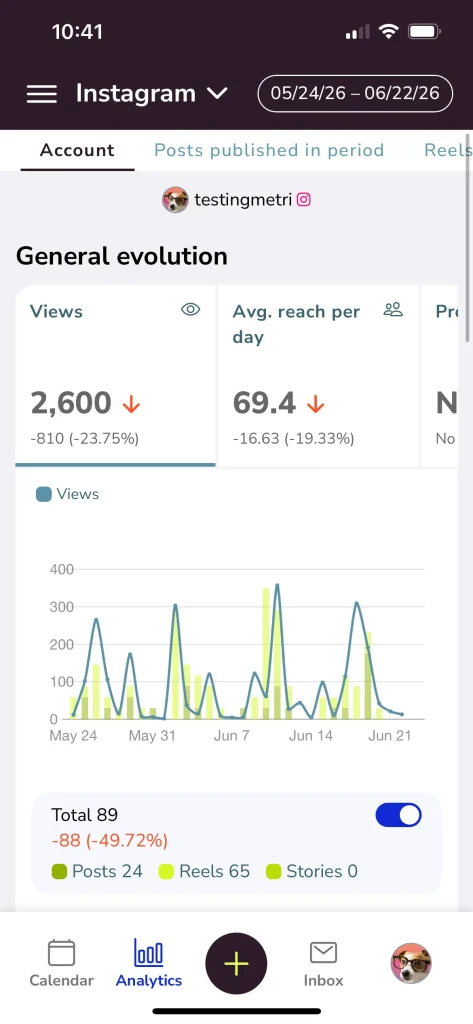
The app pulls analytics for all the platforms Metricool supports, including your website or blog, Facebook, Instagram, X, LinkedIn, Pinterest, TikTok, Google Business Profile, YouTube, and Twitch, along with Facebook Ads, Google Ads, and TikTok Ads. Depending on the network, you can dig into community growth, audience demographics, post and reel performance, stories, competitors, and more. It’s the same data you’d see on desktop, formatted for a smaller screen.
Inbox
The Inbox brings together comments and private messages from Instagram, Facebook, X, TikTok, YouTube, and LinkedIn, plus reviews from your Google Business Profile, all in one place.
From here you can:
- Reply to comments and direct messages, and mark them as read or resolved.
- Filter conversations by social network, post type, or status.
- Search for a conversation by username.
- Save commonly used replies so you can paste them in without retyping.
Reports, My Tasks, and Library Posts
These three live under More in the lefthand menu. Reports shows the reports you’ve already generated, and you can create a new one with the clipboard-plus button in the top right. My Tasks is where content you’ve sent for approval shows up while it’s pending or after it’s been rejected, with the reviewer’s notes attached. Library posts is where your saved content lives, ready to reuse.
Settings
Settings sits under Help in the lefthand menu, alongside the Help Center and Live Support Chat. It’s where you manage your account:
- Brand Settings: edit your brand’s name and image, connect new networks, see who has shared a brand with you, and reconnect or remove profiles.
- Account Settings: update your credentials, change your language or timezone, add a new brand, log out, or delete your account. Changes here affect only your session, not the rest of your team.
- Device Settings: edit the name Metricool uses to identify your device. This matters because the saved device is the one you’ll publish from and get notifications on.
- Application Info: check details about the app, including the installed version.
What You Can Do in the Metricool App
Most of your daily work lives in the app. The heavier planning and analysis stays on the web. Here’s how the two split:
| Feature | Available in the App |
| Plan, edit, and duplicate posts | Yes |
| Edit by social network | No |
| Best times to post | Yes (basic view) |
| Schedule threads | No |
| Generate text with AI | Yes |
| Editor in the planner | Yes (image editing) |
| Access to the Post Library | Yes |
| Access to Google Drive | Yes |
| Access to Canva | Yes |
| Access to Adobe Express | No |
| Social Calendars | No |
| SmartLinks | No |
| Analytics | Yes |
| Inbox (messages and replies) | Yes |
| Ads (ad campaigns) | No |
| Generate reports | Yes |
| Subscription management | No |
| Brand and profile management | Yes |
| User management | No |
| Content approval system | Yes |
| My tasks | Yes |
| Metricool Studio | No |
| Campaign Dashboards | No |
A few come with caveats worth knowing:
- Best Times to Post: the app shows a basic view. Detailed percentages live on the web.
- Editor in the Planner: you can edit images in the app. Video editing is web only.
- Generate Reports: you can create and download reports, but building report templates is a web feature.
- Subscription Management: plan changes happen on the website, with one exception below for plans bought through the app stores.
- Metricool Studio and Campaign Dashboards: both are desktop only.
If you don’t have Metricool yet, you can set up a free account and have the app running in a couple of taps.
When to Use the Metricool App vs. the Web Version
The two work best together. Plan and analyze from your desktop, then handle the day-to-day from your phone. Everything syncs automatically, so you’re always looking at the same data.
Reach for the app when you want to:
- Share a file or text from another app to start a post.
- Publish urgent or on-the-go content.
- Reply quickly to messages and comments.
- Check basic metrics while you’re away from the office.
- Edit or reschedule existing posts.
- Get push notifications for scheduled posts, including content that needs a manual publish (like some Instagram and TikTok formats).
- Open Metricool links from an email or another app directly in the installed app.
Stick with the web version when you need to:
- Plan strategically with templates and recurring posts.
- Run in-depth analysis of performance, competitors, and hashtags.
- Create and manage custom SmartLinks.
- Set up and monitor ad campaigns.
- Build reports from templates for clients or teams.
- Use the AI assistant to schedule your posts.
- Manage roles and permissions.
- Work with Metricool Studio and Campaign Dashboards, both desktop only.
Generating Social Media Reports on the Go
If you’re caught without a computer when a report is due, the app has you covered. You’ll need a Metricool account, the app installed, and your social profiles connected. Then:
- Tap the three lines in the upper lefthand corner and then “Reports”.
- Create New Report by tapping the upper righthand button. If you’ve made one before, even on your computer, you’ll find it under Generated Reports.
- Choose your settings: the period to analyze, the language, the networks to include, and a template if your plan offers them.
- Add your company logo for a personal touch.
- Tap Create New Report and download it as a PDF or PowerPoint file.
Previously generated reports are already loaded on the Analytics page, so you can grab one with a single tap when a client asks.
Managing Your Metricool Plan Through the App
Plans purchased through the app store are billed by Apple or Google rather than Metricool, so that’s also where you’d manage or cancel them. Promo codes and annual billing only apply to plans bought on the Metricool website.
Starter Mobile 5 vs. Starter 5
Both plans offer the same core features, including up to five brands, LinkedIn access, and reports. The difference is how you buy and manage them:
| Aspect | Starter Mobile 5 (App) | Starter 5 (Web) |
| Purchase | From the app | From the website |
| Billing cycle | Monthly | Monthly or annual |
| Cancellation | Through the App Store or Google Play | From the Metricool website |
| Payment methods | App Store / Google Play | Credit card, PayPal |
| Promo codes | Not applicable | Applicable |
| Refund requests | Managed by Apple or Google | Managed by Metricool |
| X (Twitter) add-on | Included in the monthly price | Paid add-on |
For the full breakdown of plans and how to manage billing, see the Help Center.
Run Your Social Media (Wherever You Are)
The web version is still where you’ll plan and dig into the numbers. The app just means you don’t have to wait until you’re back at your desk to answer a comment, publish a post, or send a client their report.
It’s free to install on Android and iOS. Create a free Metricool account or log in with the one you already have, and start running your social media from your phone.
