

How to Schedule Your LinkedIn Posts in 2026
 Kata
29 April 2026
Kata
29 April 2026 
If you’re wondering whether you can schedule your LinkedIn posts in advance, the answer is a clear yes: either directly within LinkedIn or through a tool like Metricool. Either way, planning ahead means your content goes out at the right time, even when you’re heads-down in other work.
Here’s everything you need to know.
LinkedIn’s Built-in Post Scheduler
LinkedIn lets you schedule posts natively on both mobile and desktop. A few things to keep in mind before you start: the scheduled time has to fall within a 1-hour to 3-month window, and you can’t schedule posts for events, jobs, or services; LinkedIn will flag those with an error.
Here’s how to use the LinkedIn post scheduler:
LinkedIn post scheduler for mobile
To schedule a LinkedIn post on your mobile device:
- Tap the “Post” button in the navigation bar.
- Type the content of your post in the “What do you want to talk about?” field.
- Tap the clock icon in the upper-right corner.
- In the Schedule pop-up window, select a date and time when you want to publish the post.
- Tap “Next.” You can see the scheduled date and time above the post.
- Tap “Schedule” in the upper-right corner. A confirmation pop-up will appear.
LinkedIn post scheduler for desktop
To schedule a LinkedIn post on your desktop:
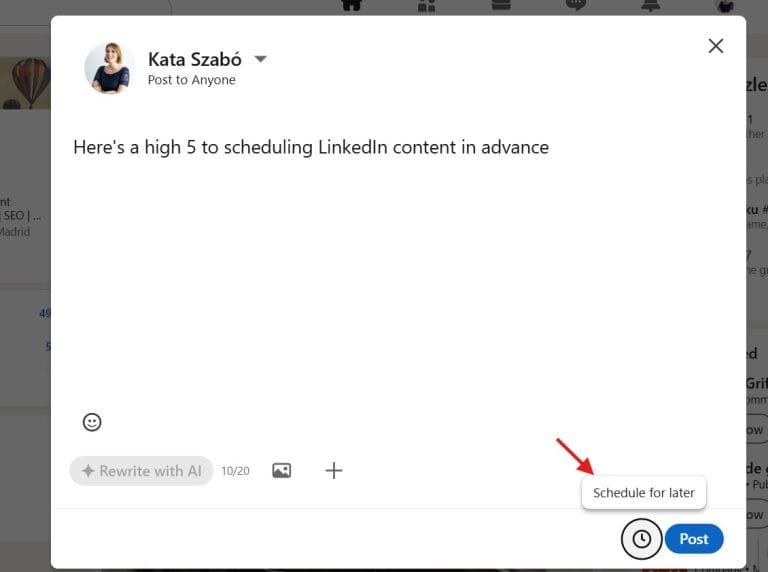
- Click “Start a post” at the top of your LinkedIn homepage.
- Type the content of your post in the “What do you want to talk about?” field.
- Click the clock icon in the lower-right corner to schedule your post.
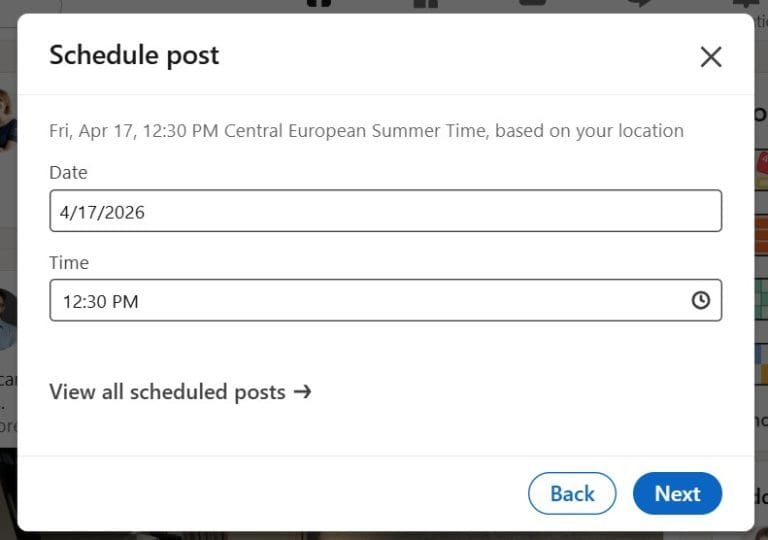
- In the Schedule pop-up window, select a date and time when you want to publish the post.
- Click “Next.”
- You can see the scheduled date and time above the post.
- Click “Schedule.” A confirmation pop-up will appear on the lower left of the page.
How to check your scheduled posts
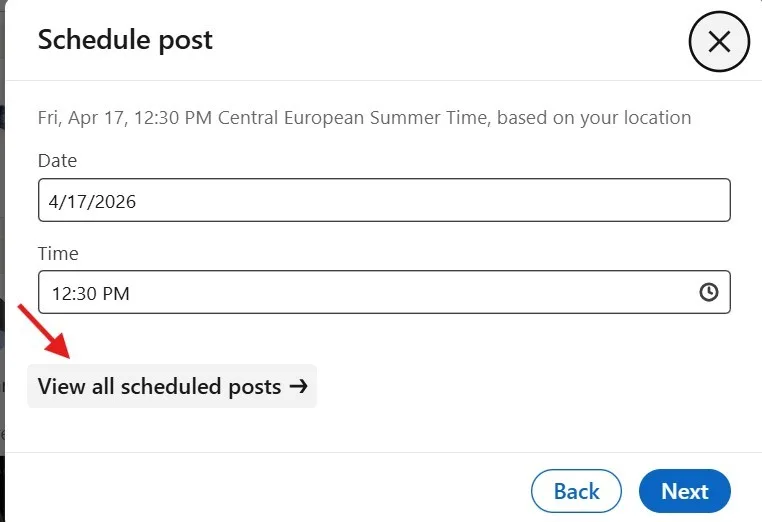
On mobile, tap “Post”, then the clock icon, then “View all”. On desktop, click “Start a post“, then the clock icon, then “View all scheduled posts”. You’ll get a preview of everything lined up and waiting to go out.
Schedule LinkedIn Posts with Metricool
LinkedIn’s native scheduler does the basics well. But if you’re managing a personal profile and a Company Page at the same time, or you want to see how your posts are actually performing, Metricool gives you a more complete picture from one place.
Here’s how to schedule a LinkedIn post using Metricool:
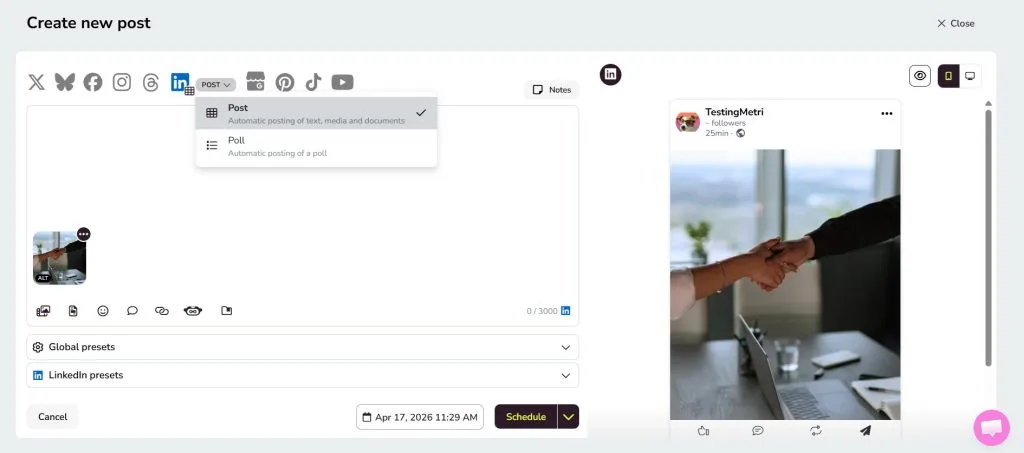
- Open your Metricool dashboard.
- Go to the “Planning” section.
- Click “+ Create post”.
- Add your content, at least one text character or one piece of media. You can also schedule a poll.
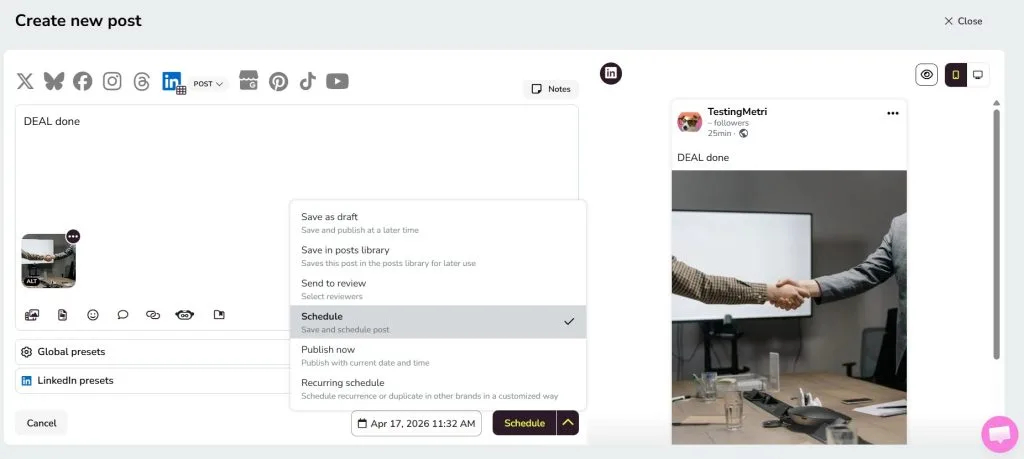
- Choose your date and time.
- Select “Schedule” from the dropdown, or “Save it as a draft”, “Send it for review”, “Add it to your posts library“, “Set it to publish immediately”, or “Set up a recurring schedule”.
Metricool supports text posts, images, link previews, PDFs, videos, and carousel posts, so building a varied content calendar doesn’t require jumping between tools.
Better LinkedIn Planning & Analytics with Metricool
Scheduling is one part of the equation. Knowing what’s working is the other.
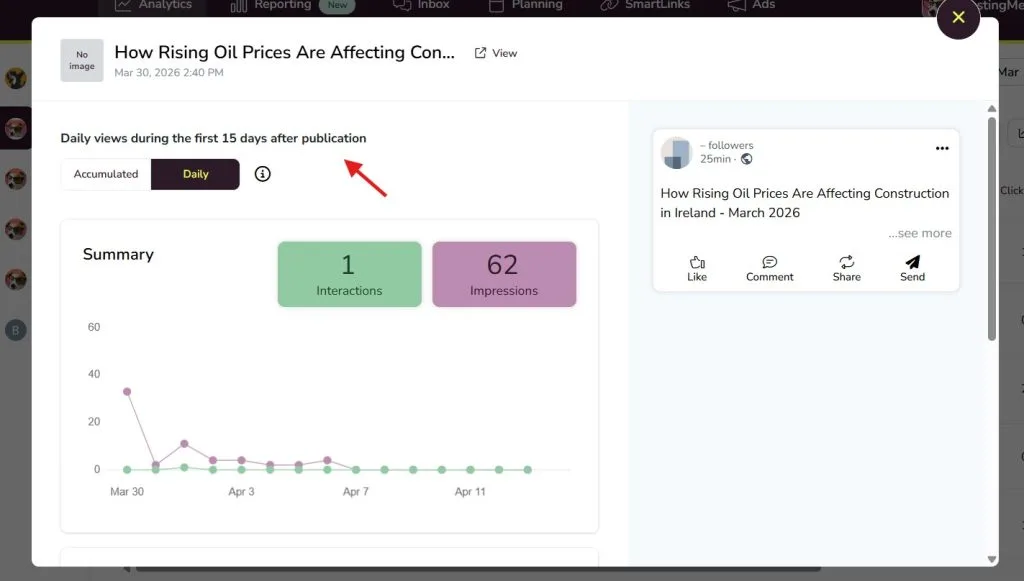
As of 2026, Metricool includes LinkedIn analytics for personal profiles, so you can track follower growth, impressions, reach, and engagement from the same dashboard you use to plan content. That means you can spot which formats and topics are driving results and schedule more of what’s already working.
Detailed post analytics (covering the first 15 days after publishing) are available on Advanced plans.
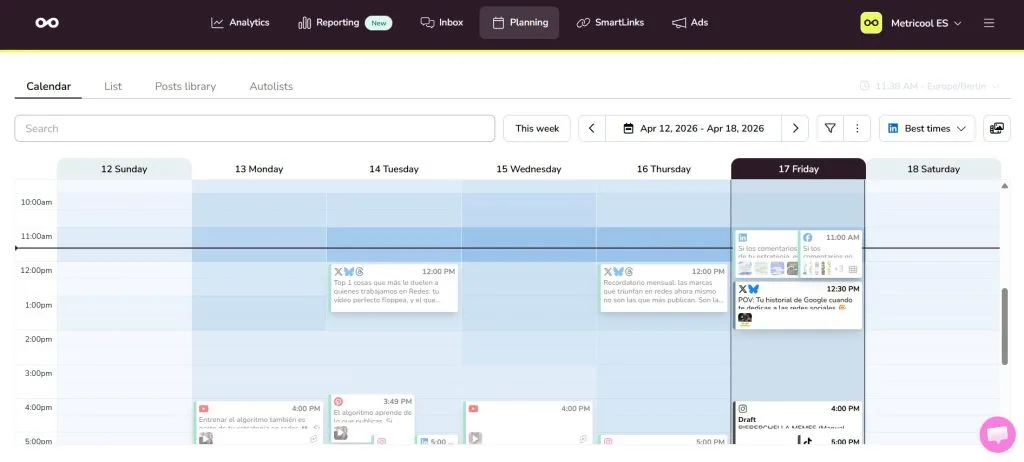
Best time to post on LinkedIn with Metricool
Each month, Metricool analyzes data from over 40,000 LinkedIn accounts and 490,000 posts to surface the best times to post for Premium users. Scheduling your content around those windows gives it a better chance of being seen by the people you’re trying to reach.
Import a CSV file to schedule in bulk
If you are interested in programming content in bulk, you can also import a CSV file to Metricool and schedule all your content at once.
You can find our CSV tutorial below:
What Else Metricool Helps With
Beyond LinkedIn, Metricool brings your whole social media workflow into one dashboard:
- Content planning
- Analytics
- Competitor tracking
- Reporting
- Inbox management
- And ad campaign monitoring across platforms.
You can also use it to find hashtags for Instagram and TikTok, manage comments and messages across your accounts, run ad campaigns on Meta, Google, and TikTok, and create a SmartLink page to drive traffic from your bio.
Why Schedule Posts on LinkedIn?
There’s a few good reasons:
- Consistency: Your content goes out on a regular cadence, even when your week gets busy. That steady presence keeps your brand visible.
- Strategic timing: Weekday mornings and early afternoons tend to see higher engagement on LinkedIn. Scheduling lets you hit those windows without setting an alarm.
- Wider reach: If your audience spans time zones, scheduling makes it easier to reach people when they’re actually online.
- Efficiency: Batching your content creation means fewer context switches throughout the week. You write, schedule, and move on.
- Alignment with content strategy: When you plan ahead, it’s easier to make sure your posts connect to broader goals (a product launch, a campaign, a seasonal moment), rather than just filling the feed.
- The algorithm: LinkedIn favors accounts that post consistently. A regular schedule keeps your content in rotation and your profile active.
What’s Working on LinkedIn in 2026?
If you want to keep growing on LinkedIn, Metricool’s 2026 LinkedIn Study breaks down which formats perform best, gives some real life examples, and debunks some common myths around LinkedIn content. Grab your free copy below!
