

How to Create a New Instagram Account: Personal & Business
 Kalum
25 June 2026
Kalum
25 June 2026 
If you’re thinking about creating a new Instagram account, but you’re worried you might have missed the boat, fear not. Despite the doom merchants saying otherwise, Instagram is still thriving. Our 2026 Instagram Study showed that views (+27%) and interactions (+19%) are still growing, so it’s not too late to start your content marketing journey on the platform.
Whether you are launching an independent venture, setting up an asset for a new corporate client, or separating your personal updates from your commercial content, knowing exactly how to navigate the platform’s account creation options is essential.
The Quick Guide to Creating an Instagram account
Here are the instructions for creating a new Instagram account via the iOS and Android apps, or on the website. For a more detailed guide for agencies and social media managers setting up new Instagram accounts for businesses, read on below.
Create an Instagram account on iPhone
Creating an Instagram account on your iPhone is easy. Follow these simple steps:
- Download the Instagram App: Open the App Store, search for Instagram, and download the app.
- Launch the App: Tap on the Instagram icon to open it.
- Start the Sign-Up Process: Tap on “Create new account.”
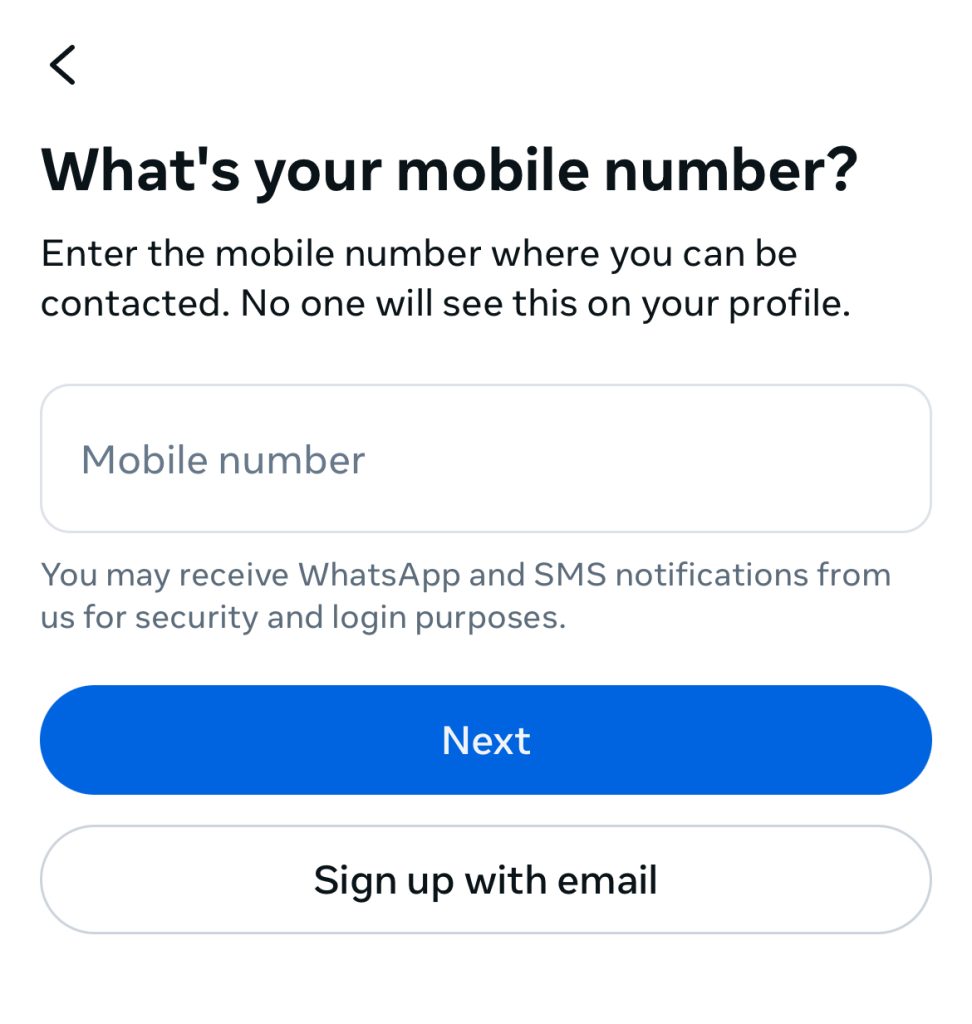
- Enter Your Information: Provide your email address or phone number, create a strong password, and fill in your full name.
- Choose a Username: Select a unique username that reflects your personality or brand.
- Add a Profile Picture: This step is optional, but a profile picture helps personalize your account.
- Complete Your Profile: Follow the prompts to finish setting up your profile.
Create an Instagram account on Android
If you’re using an Android device, here’s how to create an Instagram account:
- Download the Instagram App: Go to the Google Play Store, search for Instagram, and install the app.
- Open the App: Tap on the Instagram icon to launch it.
- Sign Up: Tap on “Create new account.”
- Fill Out Your Details: Enter your email or phone number, create a password, and provide your profile information.
- Choose a Username: Pick a catchy username that represents you or your brand.
- Upload a Profile Picture: This is optional but recommended.
- Finish the Setup: Follow the on-screen instructions to complete your account setup.
Create an Instagram account on the web
Prefer using a computer? Here’s how to create an Instagram account on your desktop:
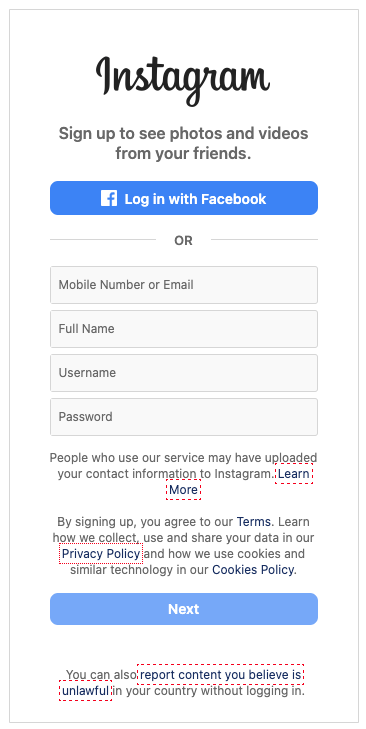
- Visit Instagram: Open your web browser and go to instagram.com.
- Sign Up: Click on “Sign up.”
- Enter Your Information: Fill in your email or phone number, create a username and password, and provide your profile details.
- Complete Your Profile: Follow the prompts to finalize your account setup.
Step-by-Step: How to Create a New Instagram Account
For professional brand managers, starting the process properly helps prevent account issues down the road.
Step 1: Establish Your Credentials
Before signing up, secure a dedicated corporate email address or a business phone number. Avoid linking a personal phone number or a private email address to a client’s profile, as this creates security risks and makes future account handoffs difficult.
Step 2: Download the Application or Access the Web Portal
Open the Instagram app on your mobile device or navigate to the official website on your desktop browser. Select the option to register a new profile.
Step 3: Enter Your Profile Details
Input your verification details, then create a secure password. The system will prompt you to enter a full name and a unique username (handle).
[Enter Business Email/Phone] ➔ [Verify Security Code] ➔ [Create Username & Password] ➔ [Profile Active]
Pro Tip: Keep your username as close to your actual business name as possible. If your exact business name is taken, add clear modifiers like “.co”, “app”, or “shop” to maintain brand clarity.
Step 4: Complete the Verification Process
The platform will send a temporary security code to your registered email or phone number. Input this code into the interface to verify your identity and activate your new digital workspace.
Expanding Your Portfolio: How To Create a Second Instagram Account
As your business operations grow, you will likely need to manage separate accounts for different product lines, regional branches, or distinct clients. Many professionals find themselves wondering how to create a second Instagram account without logging out of their primary profile
The platform allows you to link and manage up to five independent accounts simultaneously within a single mobile application device. This setup lets you monitor notifications and update content across multiple brands on the fly.
Adding an Existing or New Profile to Your Device
- Go to your primary profile tab by clicking your profile picture in the bottom right corner of the mobile app.
- Tap your username displayed at the top left of the screen. This action opens a dropdown menu containing your connected profiles.
- Select the option labeled Add Account.
- Choose “Log In to Existing Account” if you already have credentials, or select “Create New Account” to build a secondary presence from scratch.
Managing Multiple Identities Safely
Linking profiles through a single login session speeds up your daily workflow, but it requires careful attention to detail. Always double-check which profile icon is active in the bottom right corner before publishing content or replying to community direct messages to prevent cross-posting mistakes.
Unlocking Professional Tools: How to Create an Instagram Business Account
A standard personal profile is fine for casual sharing, but it lacks the data tracking and automated publishing features needed for serious business growth. To access performance metrics, run paid ad campaigns, and use third-party scheduling tools, you need to know how to create Instagram business account frameworks.
Converting a standard profile into a professional account is completely free and can be handled instantly inside your account settings.
The Migration Checklist
- Go to Settings: Open your profile tab, tap the three horizontal lines in the top right corner, and select the accounts option menu.
- Switch Account Type: Scroll to the bottom of the menu list and select Switch to Professional Account.
- Select Your Category: Choose the specific classification descriptor that best matches your daily operations, such as Retailer, Content Creator, Local Business, or Agency.
- Confirm Your Business Details: Review and input your public business contact information, including your customer support email, phone number, and physical office address.
Linking to a Facebook Business Page
To unlock your new profile’s full potential, connect it directly to an official Facebook Business Page that you manage. This connection provides secure API access, which is required to use advanced social media dashboards, run complex meta ad campaigns, and automate your content publishing calendars.
Streamlining Multi-Profile Management with Metricool
Setting up your business profiles correctly is just the first step. The real challenge is managing the ongoing daily workflow across all those channels. Logging in and out of multiple accounts, tracking post success across different dashboards, and keeping up with community messages can quickly become overwhelming.
Metricool provides a centralized workspace that brings all your connected Instagram business accounts into a single dashboard. Once you link your professional profiles, you can schedule posts, carousels, and video Reels visually, using an integrated best-times overlay that shows exactly when your specific audience is active online.
Best Practices for Launching Your New Profiles
To set your new accounts up for long-term success, use these essential setup practices right after activation:
- Keep Personal and Professional Separate: Use distinct email addresses and login streams for client profiles. This ensures your personal accounts stay secure and makes handoffs simple if you transition the project to another team member later.
- Optimize Your Bio Copy: You have limited space to capture user attention. State exactly what your business does, include relevant industry keywords, and add a clear call to action pointing to your main website link.
- Maintain Visual Brand Consistency: Use a clean version of your logo for the profile picture. Choose a cohesive color theme and layout style for your initial posts so your profile grid looks professional as soon as users land on it.
- Secure Your Assets Instantly: Turn on two-factor authentication (2FA) using a secure authenticator app on all new profiles. This protects your hard work from unauthorized access.
How to Connect Your Instagram Account to Metricool
Now that you’ve set up your Instagram account, it’s time to enhance your social media marketing strategy by connecting it to Metricool, an all-in-one social media management platform.
By linking your Instagram to Metricool, you unlock features such as performance analytics, post creation, planning, scheduling, competitor analysis, and engagement metrics. To fully enjoy its analytic capabilities, make sure your Instagram account is set to “Professional” or “Business” mode. This gives you additional insights and tools to optimize your online presence and social media strategy.
Here’s how to connect your Instagram account to Metricool:
- Create a Metricool Account: Visit metricool.com and sign up for a free account.
- Access Your Dashboard: Once logged in, navigate to your Metricool dashboard.
- Add a New Profile: Click on “Add new profile.”
- Select Instagram: Choose Instagram from the list of social networks.
- Authorize the Connection: You’ll be redirected to Instagram to authorize Metricool. Log in to your Instagram account and grant the necessary permissions.
- Complete the Connection: Your Instagram account will now be linked to Metricool, providing you with valuable analytics and management tools.
Improve Your Instagram Strategy with Metricool
Grow your online presence with the all-in-one social media management tool. Create, schedule, analyze, and optimize your content.
