

How to Turn off AI on TikTok: A Guide for Creators
 Kalum
31 December 2025
Kalum
31 December 2025 
Artificial intelligence on social media has gone from behind-the-scenes assistant to a visible part of the user experience. As we head into 2026, TikTok has expanded its suite of artificial intelligence tools to include everything from AI video filters to automated scriptwriters and “Smart Search” features. While these tools offer efficiency, many users are seeking ways to return to a more human-centric experience.
Whether you want to protect your data privacy, reduce the amount of synthetic content in your feed, or simply maintain a more authentic brand presence, understanding how to manage these features is essential. This guide explains how to turn off or limit various artificial intelligence features on TikTok, with step-by-step walkthroughs for both viewers and creators.
Defining AI on TikTok: What Can You Actually Turn Off?
It is important to understand that “AI” on TikTok is not a single switch. It is a collection of different technologies that serve various purposes. To effectively manage your experience, you must identify which specific parts of the technology you want to control.
The Recommendation Algorithm (FYP)
This is the core of the platform. The algorithm uses machine learning to predict what you want to see. You cannot “turn off” the algorithm entirely, but you can reset its training or hide certain types of content.
AI Generated Content (AIGC)
These are the videos created using tools like Midjourney, Sora, or TikTok’s AI Alive tool, which allows users to convert pictures into videos with text prompts.
Creative Tools
For creators, these include AI filters, the AI Scriptwriter, and the Creative Assistant. These are optional but often enabled by default in the editing suite.
AI Search and Discovery
Features like the “Find Similar” button or “Smart Search” use visual recognition to identify products or objects within a video.
How to Turn Off AI Content in Your For You Feed
If your feed is being overwhelmed by artificial videos, TikTok has introduced a way to dial down the volume of generative content. This is particularly useful for marketers who want to stay on top of real-world trends rather than being distracted by AI-generated “slop”.
Using the Manage Topics Slider
In late 2025, TikTok added a specific category for AI-generated content within its “Manage Topics” section. This allows you to indicate your preference for seeing less of this material.
- Open your TikTok app and go to your Profile.
- Tap the three-line menu icon in the top right corner.
- Select Settings and Privacy.
- Scroll down to Content Preferences.
- Tap on Manage Topics.
- Find the AI-generated content slider.
- Use the slider to move it to the left. This tells the system you want to see the minimum amount of artificial content possible.
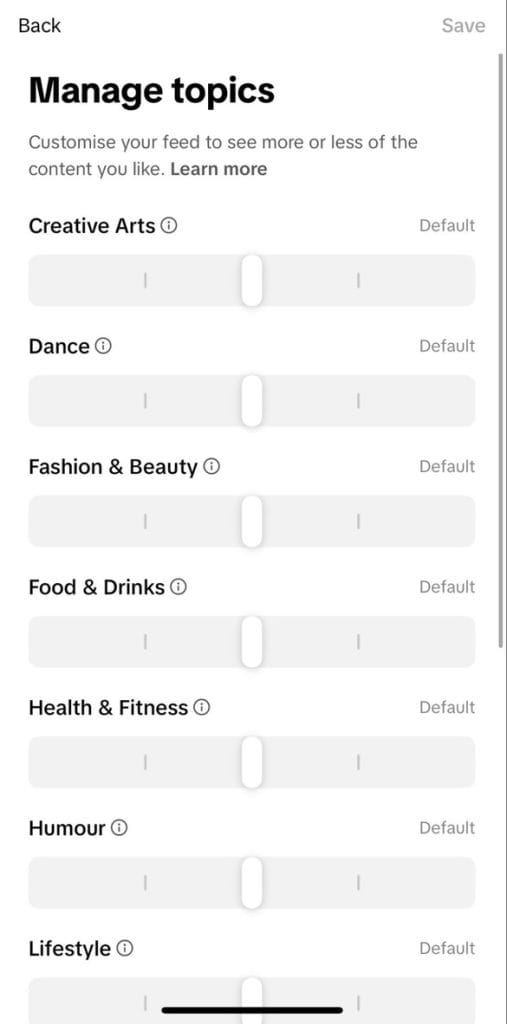
It is important to note that this does not remove every single AI video. TikTok requires creators to add content labels that identify AI-generated content. However, if a video is not properly labeled or detected, it might still slip through.
Managing TikTok AI Tools for Creators
If you are a creator or an agency managing brand accounts, you might want to avoid using TikTok’s built-in AI tools to maintain a higher level of authenticity or to avoid the “AI-generated” label that the platform now attaches to certain content.
Disabling the Creative Assistant
The Creative Assistant is an AI chatbot within the TikTok Creative Center designed to help with brainstorming and scriptwriting. If you prefer to rely on your own team’s creativity, you can simply ignore this tool. There is no “off” switch since it is a web-based assistant, but you can opt out of using its suggestions.
Avoiding the AI Label on Your Posts
TikTok has strict policies regarding the disclosure of realistic AI content. If you use third-party tools to create a video, you are required to label it. If you use TikTok’s internal AI effects, the app often labels it for you automatically.
- To ensure your content remains “human” in the eyes of the algorithm:
- Avoid using AI Voiceovers (the text-to-speech voices that sound overly robotic).
- Skip the AI Filters that completely alter your physical appearance into a synthetic version.
- Do not use the AI Scriptwriter for your captions, as the algorithm can often detect the linguistic patterns of generative text.
If you choose to use these tools, you must be transparent. Failing to toggle the “AI-generated content” label during the posting process can lead to your video being suppressed or removed.
Privacy: How to Stop AI from Training on Your Data
A major concern for entrepreneurs and businesses is how their data is used to train future models. While TikTok’s data usage policies are complex, you can take steps to limit how your interactions are processed.
Limiting Personalization and Tracking
While you cannot stop the core algorithm from learning from your views, you can limit the “off-platform” tracking that feeds the AI’s understanding of your behavior.
- In Settings and Privacy, go to Ads.
- Tap on Personalized ads.
- Toggle the switch to OFF. This stops TikTok from using data from its partners to build a profile of you.
- Go back to Privacy and select Data sharing.
- Turn off any options that allow the platform to share your activity with third-party AI researchers or partners.
In regions like the European Union or the United Kingdom, users have stronger rights under GDPR to object to their data being used for training. If you are in one of these regions, look for the “Right to Object” form within the TikTok Privacy Center to officially opt out of having your content used for AI model training.
Disabling AI-Powered Shopping Features
One of the more intrusive AI features for many users is the “Find Similar” or “Display Object Tag” tool. When you pause a video, the app uses visual recognition to identify items (like a shirt or a piece of furniture) and provides a link to buy similar products in the TikTok Shop.
How to Turn Off “Find Similar” Object Tags
For those who find these tags distracting or an invasion of the viewing experience, they can be disabled in the playback settings.
- Go to your Profile and tap the three-line menu.
- Choose Settings and Privacy.
- Scroll down to the Content and Display section and tap Playback.
- Look for the toggle labeled Display object tag.
- Switch this OFF.
Turning this off ensures that when you pause a video, you won’t be greeted by a search bar or product tags trying to sell you items based on the objects in the frame. This makes the platform feel less like a shopping mall and more like a social space.
Resetting the Algorithm: The Ultimate “Turn Off”
If your “For You” page has become a hall of mirrors filled with content you no longer enjoy, the most effective way to “turn off” the current AI training is to perform a total reset. This effectively wipes the slate clean and allows you to retrain the AI from scratch.
How to Refresh Your For You Feed
- Go to Settings and Privacy.
- Tap Content Preferences.
- Select Refresh your For You feed.
- Review the prompt and tap Continue, then Refresh.
This action cannot be undone. Once you refresh, your previous “likes” and viewing history will no longer influence your feed. You will start with a generic feed, and you can then carefully “train” the new AI by only interacting with high-quality, human-made content.
Why Authenticity Wins for Marketers
As we move into 2026, there is a clear trend toward “AI fatigue.” Users are becoming increasingly adept at spotting synthetic content, and many are actively seeking out creators who provide a raw, honest perspective. For agencies and brands, “turning off” the reliance on AI tools can actually be a significant advantage.
Building Trust Through Transparency
When you choose to skip the AI filters and the automated scripts, you are signaling to your audience that there is a real person behind the brand. This transparency is a powerful way to build community. In an environment where everyone else is using a “Beauty AI” filter, a creator who shows up with real skin and real flaws stands out.
Avoiding Algorithmic Penalties
While TikTok encourages the use of its features, it also penalizes content that it deems “low quality” or “misleading.” Many AI-generated videos fall into this category. By focusing on original, high-quality production, you avoid the risk of having your reach limited because the system flagged your video as “synthetic slop.”
Summary of Settings to Turn Off AI on TikTok
To make this easier for your social media workflow, here is a quick reference table of the settings discussed:
| AI Feature to Disable | Settings Path | Effect |
| AIGC in Feed | Settings > Content Preferences > Manage Topics | Reduce AI videos on your FYP. |
| Object Tags | Settings > Playback > Display object tag | Removes “Find Similar” shopping links. |
| Ad Personalization | Settings > Ads > Personalized ads | Limits data training for ad profiles. |
| Content Preferences | Settings > Content Preferences > Refresh FYP | Resets the recommendation engine. |
| AI Content Label | Post Screen > More options | Discloses AI use (mandatory if AI is used). |
Taking Back Control of Your Feed
Artificial intelligence is a permanent fixture of modern social media, but that doesn’t mean you have to be a passive participant. By understanding how to “turn off” or limit these features, you can curate a TikTok experience that aligns with your values and your brand’s goals.
For social media managers and creators, the goal should be to use technology as a tool, not a crutch. Whether you are refreshing your feed to escape a “content bubble” or disabling shopping tags to focus on storytelling, taking control of these settings is the first step toward a more intentional and authentic online presence.
The shift toward a more human-led social media environment is well underway. By following the steps in this guide, you ensure that your brand remains at the forefront of this movement, prioritizing real connection over algorithmic convenience.
