

How to Use Meta AI for Content Creation
 Kata
16 April 2026
Kata
16 April 2026 
Meta AI is integrated into all Meta platforms by now – Instagram, Facebook, WhatsApp and Messenger. And while it’s had its fair share of criticism (mainly because turning it on has proved to be much easier than turning it off), it does have some hidden gems that can save you time in your content creation workflow. Like with most AI tools, the key is knowing how to use it for your specific processes. So, let’s break down how you can make the most of it across Meta’s platforms.
What Is Meta AI?
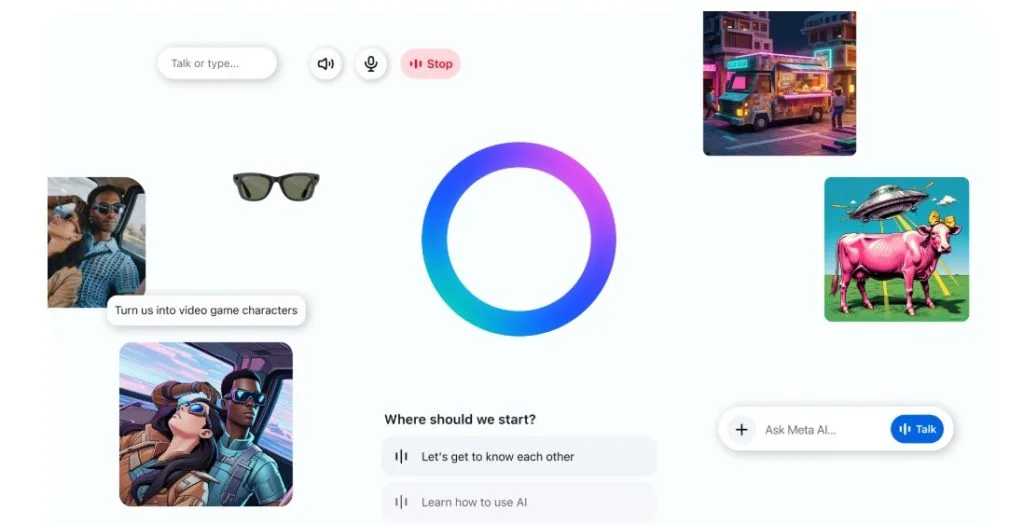
It’s Meta’s built-in AI assistant. You can chat with it using simple prompts – text or voice – and it responds by generating text or images. It lives inside the platforms you already use, and now also exists as a standalone app.
Meta recently claimed that the tool had more than 1 billion monthly users and it’s being continuously improved to surface more relevant recommendations based on what users are discussing with the AI.
How to Use Meta AI on Each Platform
Before jumping into specific platforms, it helps to think of Meta AI less as a tool and more as a layer. It doesn’t replace what you already do but it speeds up the parts that usually slow you down:
- Coming up with ideas
- Writing first drafts
- Answering repetitive messages
- Turning one piece of content into multiple formats
From there, each platform uses that layer differently. And now, let’s see some real life use cases on each platform.
How to Use Meta AI on Instagram
This is where most creators will feel the impact first. It’s is baked right into the Instagram search bar and DMs, which makes it frictionless to use in the middle of your workflow. Here’s where it tends to help most:
- Content brainstorming: Ask Meta AI for post ideas based on your niche, campaign theme, or trending topics. To generate post ideas, input a basic prompt related to your campaign’s theme and it will suggest content in seconds.
- Example: “Suggest 10 Instagram Reels ideas for a [your niche] brand preparing for [season / campaign].”
- Develop a content series: Prompt it to help you build out a content plan
- Example: “Plan a 5‑part content series for my Instagram page about [topic]. Include a short intro and one post idea for each day.”
- Caption and hashtag generator: Briefly describe your post and Meta AI will suggest captions and relevant hashtags
- Example: “Write a short, friendly Instagram caption for a post about [product/service] and suggest 5 relevant hashtags.”
- Collab outreach drafts: Use it to write initial outreach messages for brand partnerships
- Example: “Draft a short, professional DM for a brand collaboration with [brand name] in the [industry] space.”
- Daily task organiser: Ask it to help prioritise your content creation to-dos for the week
- Example: “Help me plan my content‑creation week: I need 3 Reels, 2 carousels, and 5 posts about [topic].”
- Research assistant: Use it to quickly summarise trends, topics, or audience insights in your niche
- Example: “Summarise the latest trends in [your niche] and give me 5 content angles I can use for social media.”
- Automate DM responses: Set up AI-assisted responses to common DMs to save time on community management
- Example: “Write 3 short, friendly automated replies for common questions like: pricing, ‘how it works’, and ‘can you DM me?’.”
Expanding Beyond Text: Voice Translation on Reels
Once your content is working, the next bottleneck is usually reach.
This is one of Meta AI’s most powerful (and still underused) features for creators who want to grow beyond their native market. Meta AI’s voice translation feature lets you publish Reels in multiple languages while keeping your voice and tone intact.
This way, the end result feels authentically like you, just in another language. Creators can also enable a lip-syncing feature that syncs the translated audio to their mouth movements.
Currently supported languages include English, Spanish, Hindi, Portuguese, Bengali, Tamil, Telugu, Marathi and more on the way.
Here’s how to enable it:
- Record your Reel as normal: face the camera, speak clearly, and avoid covering your mouth
- Before publishing, tap “Translate your voice with Meta AI”
- Toggle translations on and choose whether to enable lip-syncing
- Preview the translated version before it goes live
- Hit “Share now”: the translation will be applied automatically
Every translated Reel is clearly labeled “Translated with Meta AI” so viewers always know when they’re watching translated content. Viewers can also choose to turn translations off or watch in the original language by selecting “Don’t translate” in the audio and language section of the three-dot menu.
Who can use it? The feature is free and accessible to all public Instagram accounts in countries where Meta AI is available.
How to Use Meta AI on Facebook
Meta AI can strengthen your Facebook marketing in a few practical ways too. Beyond the general use cases already mentioned, here’s how you can use it in concrete, actionable steps.
Personalize ads
Use Meta AI to help you tailor your Facebook ads so they better match your audience’s behavior and preferences, improving conversion rates.
- Ask Meta AI to analyze your audience
- In Facebook / Meta‑AI‑enabled tools, start a prompt like:
- “Based on my Facebook page audience, what are the main interests and behaviors I should target?”
- Use those insights to refine:
- your ad copy,
- visual ideas,
- and your audience setup in Meta Ads Manager.
- In Facebook / Meta‑AI‑enabled tools, start a prompt like:
- Use it to draft or refine ad copy
- Ask Meta AI:
- “Write three short Facebook ad variations for [offer] in a friendly, curiosity‑driven tone.”
- “Rewrite this ad text to sound more urgent and benefit‑focused.”
- Copy the best‑performing variant into Ads Manager, then test and optimize.
- Ask Meta AI:
Create dynamic content
Keep your Facebook feed active and engaging by using Meta AI to generate fresh post ideas and content drafts.
- Ask for content ideas and angles
- Message Meta AI:
- “Give me 10 Facebook post ideas for a [your niche] page that can drive engagement.”
- Filter the list to best match your brand voice and calendar.
- Message Meta AI:
- Turn ideas into actual posts
- For each idea, ask Meta AI:
- “Turn this into a short Facebook post under 150 words.”
- “Make this post more conversational and add a question to boost comments.”
- Paste the final version into your Facebook post composer or scheduling tool (like Metricool).
- For each idea, ask Meta AI:
Audience insights
Use AI‑assisted analysis to understand what content resonates best with your followers and build a more data‑driven content plan.
- Summarize engagement patterns
- Look at your top‑performing posts and ask Meta AI:
- “Based on these headlines and captions, what themes, tones, and formats seem to work best?”
- Use the answer to:
- double down on those topics,
- avoid formats that underperform.
- Look at your top‑performing posts and ask Meta AI:
- Turn insights into a content plan
- Ask Meta AI:
- “Create a 7‑day Facebook content plan using these top‑performing themes.”
- Then plug that plan into your calendar and schedule posts accordingly.
- Ask Meta AI:
Animate your profile picture
Use this relatively new feature to make your Facebook profile picture stand out from the crowd.
- Find the “animate profile picture” option in your Facebook profile settings.
- Upload a short video or GIF that reflects your brand.
- Use Meta AI to:
- generate a short prompt for the animation style (e.g., “Suggest a simple 3‑second loop idea for a brand‑awareness GIF.”).
Learn more about animating your Facebook profile picture with Meta AI:
How to Use Meta AI on Messenger
Messenger is where Meta AI really shines for customer‑facing brands. You can use it to automate replies, offer instant support, and keep your brand voice consistent, while saving time.
Automate responses
Set up Meta AI to handle common questions instantly, so no message goes unanswered.
- Enable Meta AI in Messenger
- Open your Facebook Business Suite or Meta Business Inbox.
- Navigate to Inbox → settings → Meta AI / automated replies (or similar, depending on your interface).
- Turn on the assistant and choose the bots or AI‑enabled replies.
- Teach Meta AI your FAQs
- Provide clear answers to common questions, for example:
- “What are your opening hours?”
- “How do I place an order?”
- Or, ask Meta AI:
- “Draft 5 short, clear answers to my top 5 customer questions.”
- Paste them into your Messenger auto‑reply / FAQ settings.
- Provide clear answers to common questions, for example:
- Test the flow
- Send a few test messages from a personal account and see how Meta AI replies.
- Adjust wording or set up human handover for more complex queries.
Instant customer service
Provide 24/7 support without being glued to your screen.
- Use Meta AI for first‑contact replies
- When someone messages your page, Meta AI can:
- answer basic questions,
- give links to your FAQs,
- confirm order details or appointment times.
- This keeps the conversation moving, even outside business hours.
- When someone messages your page, Meta AI can:
- Add a human handover when needed
- In your Messenger settings, assign certain keywords (e.g., “agent”, “talk to a person”) to trigger a live rep.
- Meta AI can still draft the initial reply, and you can edit it before sending.
Brand voice customization
Tailor your AI responses to match your brand’s tone and repeat questions.
- Define your brand voice in Meta AI
- Give it a short prompt, such as:
- “You are a friendly, professional support assistant for [brand]. Your tone is [clear, warm, slightly playful].”
- Use that same tone across all your auto‑reply drafts.
- Give it a short prompt, such as:
- Create a branded reply library
- Ask Meta AI:
- “Write 10 Messenger‑style replies for common questions, in our brand voice.”
- Store them in a doc and reuse them in your automation tools whenever you need a quick, on‑tone answer.
- Ask Meta AI:
How to Use Meta AI on WhatsApp
WhatsApp lets you interact directly with Meta AI inside your chats, and that opens up practical ways to send timely updates and surface customer insights, both of which are gold for your content and CRM strategy.
Timely updates and notifications
Use Meta AI to help you draft short, personalized WhatsApp updates you can send to customers, keeping your audience engaged without manually writing everything from scratch.
- Start a chat with Meta AI
- Open a private chat or a business‑style group in WhatsApp.
- In the chat, type @Meta AI and start a prompt, for example:
- “Draft a short WhatsApp update for my clients about [offer / new feature]. Keep it under 100 words and friendly.”
- “Write 3 short WhatsApp‑style update options for [product launch].”
- Refine the message
- Ask Meta AI to:
- shorten or lengthen the text,
- add a clear call‑to‑action (e.g., “Reply YES to get early access”),
- adapt the tone (professional, friendly, playful).
- Copy the final version when you’re happy with it.
- Ask Meta AI to:
- Send the update to your audience
- In WhatsApp, use:
- Broadcast lists:
- Open WhatsApp → Contacts → Broadcast lists → New list, add your subscribers, then paste the message and send.
- Groups or individual chats:
- Paste the Meta‑AI‑drafted message into one‑to‑one conversations or small groups that are relevant to the update.
- Broadcast lists:
- Remember to keep the message conversational, avoid being spammy.
- In WhatsApp, use:
- Use Business AI (if you have WhatsApp Business)
- If you’re using WhatsApp Business:
- Go to WhatsApp Business → Tools → Your Business AI (if the feature is available in your region).
- Tap Continue and Accept the prompts, and follow the on‑screen authentication steps.
- From there, you can:
- let Business AI help you draft replies to common questions,
- prepare follow‑up messages (e.g., order confirmations, reminders, or updates),
- and later send those via WhatsApp or integrate them with your CRM.
- appointment reminders,
- order status updates,
- cart‑abandonment‑style nudges,
- pre‑launch or limited‑offer alerts.
- If you’re using WhatsApp Business:
Customer insights: surface patterns in behavior and preferences
Meta AI itself does not give you a full analytics dashboard inside WhatsApp, but you can use it to summarize conversations and spot patterns, which you can then plug into your CRM and content strategy.
- Open or review key customer chats
- Open important one‑to‑one support chats or feedback groups.
- You can:
- copy short excerpts from recurring questions, or
- mentally note the main topics that keep coming up.
- Ask Meta AI to summarize and cluster themes
- In a clean WhatsApp chat (or a designated “analysis” group), message @Meta AI with something like:
- “Based on the last 30 messages in this group, what are the top 3 topics my customers keep asking about?”
- “Summarize these messages and tell me the top 3 customer needs and pain points.”
- Meta AI can:
- pull out recurring themes (e.g., “pricing”, “onboarding”, “technical issues”),
- highlight emotions (frustration, curiosity, excitement),
- and suggest follow‑up questions or content ideas.
- In a clean WhatsApp chat (or a designated “analysis” group), message @Meta AI with something like:
- Turn insights into CRM and content actions
- Use Meta AI’s summary to:
- build a simple “FAQ” list,
- draft social posts or blog articles that answer those top questions,
- create email or WhatsApp sequences tailored to each theme (e.g., a “getting started” drip for new customers).
- Use Meta AI’s summary to:
From Ideas to Visuals: Image Generation
So far, Meta AI helps you think and write faster. But it becomes more interesting when you start using it visually. You can generate images from simple prompts describing the subject, style, and mood and get multiple variations instantly.
Here’s how to use it:
- Open Meta AI; either in the standalone app, on meta.ai, or within Instagram, Facebook, WhatsApp, or Messenger
- Type a description of the image you want to create. Be specific: include the subject, style, mood, and any other details
- Meta AI will generate four image options based on your prompt. Review them and download the ones you like, or refine your prompt and try again
Image prompt tips:
- Be specific about style: “photorealistic,” “illustrated,” “minimalist,” “vintage,” etc.
- Include lighting and mood: “warm sunset lighting,” “moody and dark,” “bright and airy”
- Mention the subject clearly: “a woman working on a laptop in a coffee shop”
- Add context: “for a social media post about productivity” helps the AI understand the use case
You can also use Meta AI to animate images — create any AI image, then ask Meta AI to animate it, or upload your own images and animate them.
Editing Instead of Starting Over
Sometimes you don’t need a new image, but a better version of the one you already have.
Beyond generating images from scratch, Meta AI’s photo editor lets you upload any image and ask it to add or change specific parts. You can also use it as a background remover, or restyle the image using dozens of AI styles, colors, and lighting options — from anime and painting to moody and sunset lighting.
This is particularly useful for:
- Refreshing product photos without a new shoot
- Adding branded visual styles consistently across your content
- Quickly removing or swapping backgrounds for different campaigns
Zooming Out: Using Meta AI for Social Media Marketing
Up to now, we’ve looked at features. But Meta AI becomes more useful when you stop thinking in features and start thinking in workflows. Across your marketing process, it helps you:
- Content generation: Use it to brainstorm post ideas, write first drafts of captions, and develop content calendars, then refine with your own voice and brand guidelines.
- Automated responses: Across Messenger and Instagram DMs, Meta AI can handle routine queries, freeing you up to focus on strategy and creative work.
- Personalizing content for your audience: The tool can help you tailor messaging by analyzing what your audience engages with most, helping you create more relevant content for different segments.
- Automating routine marketing tasks: From drafting outreach emails to summarizing performance data, Meta AI can take repetitive tasks off your plate, especially useful if you’re managing multiple accounts.
Data Privacy: What to Keep in Mind
There’s one trade-off worth understanding before fully relying on it. Meta uses interactions with Meta AI to improve its models. Which means what you input may be used for training.
A few things to keep in mind:
- Avoid sharing sensitive personal or client information in your prompts
- Review Meta’s data usage policies regularly, as they are updated
- You can limit how Meta uses your data for AI training, though completely opting out is limited
Metricool + Meta AI: Better Together
There’s one gap Meta AI doesn’t solve. It helps you create content faster, but it doesn’t help you manage everything around it.
That’s where Metricool fits.
While Meta AI speeds up ideation and execution, Metricool brings structure:
- Plan and schedule content across platforms
- Track performance with real data
- Maintain consistency over time
- Manage everything from a single dashboard
In practice, it looks like this: Meta AI helps you decide what to say. Metricool helps you understand what worked.
And that combination is what turns content into a system.
