

What Is Metricool Studio? The AI Reporting Tool That Builds Your Social Media Reports for You
 Gretchen Oestreicher
26 August 2026
Gretchen Oestreicher
26 August 2026 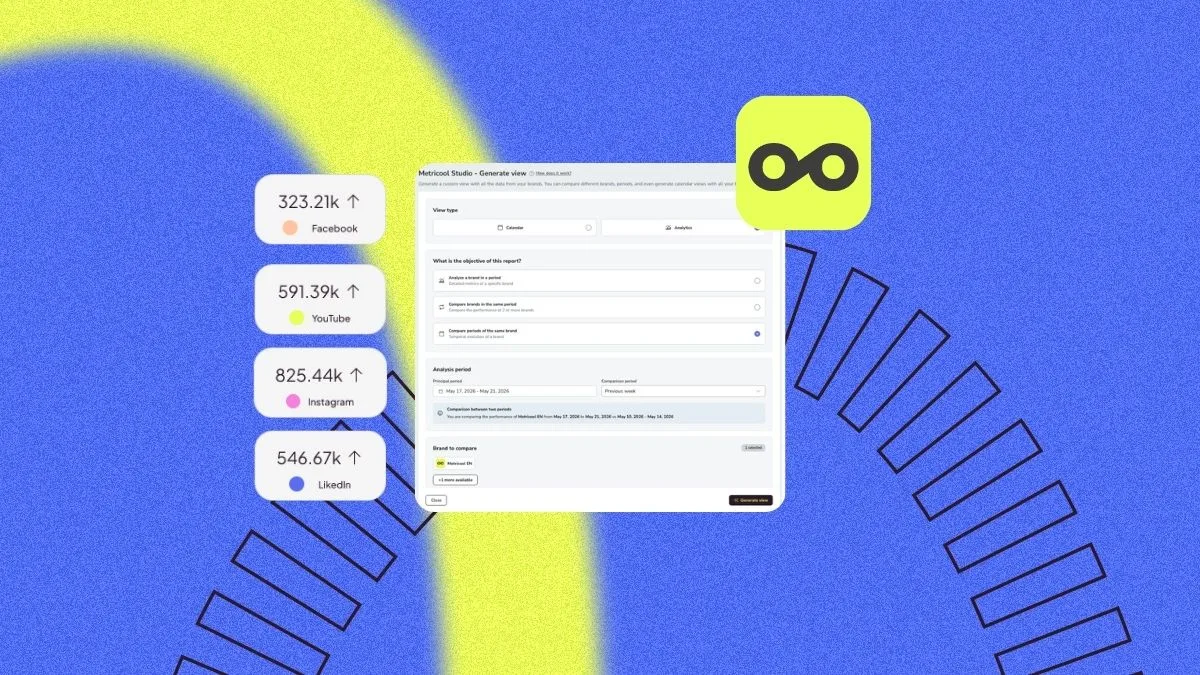
Reporting is the part of social media work almost nobody looks forward to. Pulling numbers from each platform, dropping them into a spreadsheet, building the charts, writing the same monthly summary, and formatting it for a client eats hours you’d rather spend on content.
That’s the work Metricool Studio takes off your plate. It’s an AI-powered reporting engine that turns your connected social data into complete Analytics and Calendar views: charts, tables, and written insights, all from a single prompt.
More and more, reading metrics is an AI job. In Metricool’s 2026 AI in Social Media Report, 59% of social media pros said they use AI to analyze their numbers, nearly double the 32% from a year earlier. And when they measure what AI gives them, time saved comes out on top (53%). That’s the hour back in your week Studio is built around.
If you want a plain-language overview of what Studio is and how it compares to Metricool’s other reporting options, start with What Is Metricool Studio? The rest of this walks through building views, sharing them, managing them, and the limits worth knowing first.
What Makes Metricool Studio Different from Standard Reporting
Studio is the AI layer in Metricool’s Reporting section. It reads your connected profiles and builds ready-to-share views without you opening a chart builder. Three things separate it from a standard report:
- Written Interpretation: A standard report hands you the numbers. Studio adds the reading: what changed, why it matters, and what to do next, packaged as executive summaries, conclusions, and content recommendations drawn from your top posts.
- Comparisons a Standard Report Can’t Make: February this year against February last year, Brand A against Brand B against a competitor, three networks side by side. Studio runs multi-brand, multi-network, multi-period analysis in one view, with no manual stitching.
- Plain-Language Setup: You describe the report you want, something like “show me my top-performing reels from the last two months and suggest five new ideas,” and Studio builds it, skipping template configuration and chart-by-chart setup.
The four reporting options line up like this:
| Feature | Standard Reports | Analytics | Data Studio | Metricool Studio |
|---|---|---|---|---|
| Customization | Limited (logo, colors) | No | Full | Full |
| Multi-brand and comparisons | No | No | Yes | Yes |
| Works inside Metricool | Yes | Yes | No | Yes |
| AI insights and recommendations | No | No | No | Yes |
Where to Find Metricool Studio
Studio lives in the Reporting section. Log in, open Reporting in the top menu, click Metricool Studio, then Create new view.
Studio is web only. You can open Standard Reports from the Metricool app, but Studio views aren’t available on mobile.
Creating a View
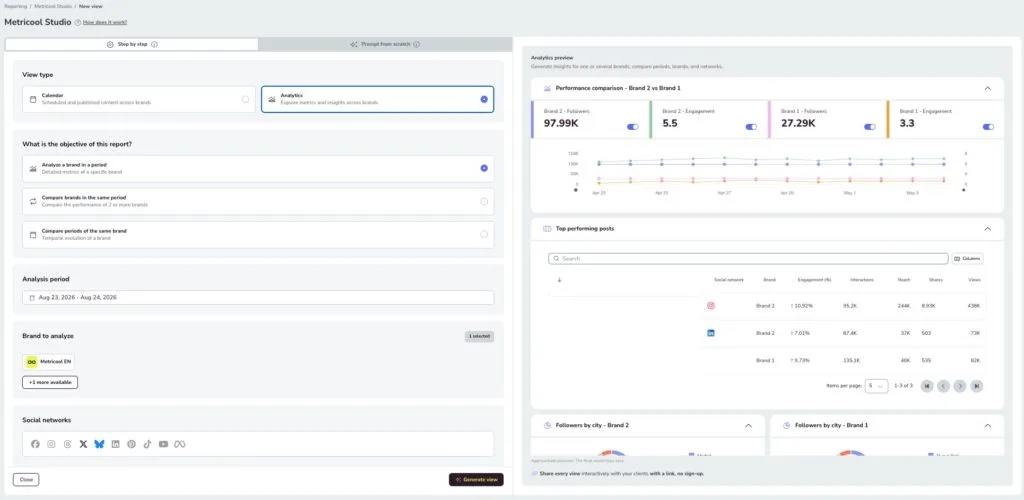
Every view starts with a choice between two modes. Metricool reworked the switcher into two clear tabs at the top of the create-view screen, each with a short tooltip explaining what it does:
Step by step (formerly Guided mode) walks you through structured fields: view type, period, brands, networks, and metrics. Studio builds the prompt from your selections. It’s the right starting point the first time, or any time you want a clean base to edit.
Prompt from scratch (formerly Expert mode) gives you a free-text box. Write your prompt directly, or start from a Smart template: competitor analysis, best posting times, content ideas, and more. It’s faster once you know the question you want answered.
Even if you prefer writing your own prompts, start in Step by step and click Show generated prompt. You’ll get a well-structured prompt to tweak, which beats building one from a blank box.
Calendar Views vs. Analytics Views
Studio builds two kinds of views:
Calendar views show scheduled posts across brands and networks for a set period. Good for content planning and weekly client check-ins.
Analytics views show performance metrics and AI-generated insights. Good for monthly reports, brand comparisons, and post-campaign analysis.
For Analytics views, you’ll also pick an objective: analyze one brand, compare brands, or compare two periods of the same brand. In Step by step, the maximum analysis window is three months.
If you’re already in Analytics and want a quick comparison, the Create comparison view dropdown builds one in Studio with a single click, previous week, previous month, or a custom range, and opens it in a new tab without changing what you’re looking at in Analytics.
The Prompt Helper Bar
When you write a prompt from scratch, a helper bar under the text box shows what a strong prompt includes: brand, networks, period, and chart or text type. As you type, Studio detects each element in real time and marks it green with a preview of what it found, the brand logos, the network icons, and the resolved date range.
Click Generate view with something missing and Studio highlights the gap, shows a notice, and changes the button to Generate anyway. You can still generate the view, and the notice points you toward a more complete prompt, which is what most determines the quality of what you get back.
Writing a Good Prompt
A good prompt covers five dimensions, no matter how you build it: brand(s), networks, time period, metrics, and visualization type. The more you define, the closer the result comes to what you pictured. Leave one vague and Studio fills the gap with an assumption.
A prompt with all five looks like this: “Pull all reels from January through February 2026 with reach and views from my Brand A account. Based on the top performers, suggest five new reel ideas to publish next month.”
Type @ in the prompt box to pull up a menu of your brands (web only).
Generate and Review
Click Generate view. Studio runs the analysis in the background, so you can keep working or close the tab. The bell icon tells you when it’s ready. You’ll get a mix of line charts, bar charts, pie charts, tables, and text blocks (executive summaries, conclusions, and recommendations), all chosen by Studio based on your prompt.
Get Answers Fast with Explore Insights
Once you’re looking at an analytics view, you don’t have to head back to Step by step or Prompt from scratch to dig deeper. An Explore insights button sits at the top of your analytics tables. Click it and an inline panel opens with ready-made questions:
- Which content performed best
- Which performed worst
- What patterns repeat in your top content
- Which format drives more engagement
- What you should publish more of
- What changed versus the previous period
Pick one and Studio generates the answer and opens it in a new tab, using the same generate-view flow as everywhere else. It runs on the same plan permissions as the rest of Studio, so there’s nothing extra to switch on.
Answers that rank your content come back in a new top content layout: cards for your best-performing pieces with a thumbnail, title, and the metrics that matter (engagement, views, reach, saves), so the ranking reads at a glance. For now, that card layout shows up only from the Explore insights shortcut, not in Step by step or Prompt from scratch.
Sharing and Exporting Views
Every view can go out as a public read-only link. Anyone with the link can open and explore it without a Metricool account, and they can’t edit it or reach the rest of your account.
To share, open the three-dot menu on the view row (or the share button inside the view), then:
- (Optional) Toggle on Customize with your logo and upload a PNG with a transparent background, 150 × 40 px recommended. The header preview shows how it looks, and a new upload replaces the old logo automatically.
- Click Copy link and send it.
The Metricool logo shows the first time you share. Once you switch to your own, that choice sticks for future shares, and you can change it anytime.
If the view uses a relative period like “this month,” refresh it to update the data and your client opens the same URL, so there’s no resending every week. To cut off access, open the view, click the share button, and click Disable Access.
Hide Charts You Don’t Want to Show
You can hide individual charts or text blocks from the public link while keeping them in your own working view. Open the view and toggle the visibility option on each element. Hidden pieces stay visible to you inside Metricool and disappear for anyone opening the public URL. Toggle them back whenever you want.
Export to PDF
Analytics views export to PDF (Calendar views don’t). Click Share, then Export to PDF, for a static version you can attach or archive.
Managing and Editing Views
Your Studio dashboard lists every view with its name, type, analyzed period, last version, brands, and the networks involved. When a view spans more than one network, its panel shows an icon for each one, so multi-network views are easy to scan at a glance.
From the three-dot menu on any row you can:
- Rename. Give the view a descriptive name like “Client X, May performance.” Only the view’s creator can rename it.
- Duplicate. Copy a view to reuse its structure for a different brand or period. Change only what you need. It’s faster than starting over and keeps your reporting consistent.
- Share. Generate or copy the public link, with the same logo option as above.
- Remove. Delete views you no longer need. This requires the Advanced Analytics Add-on.
If you can see a view but can’t open it, that’s usually a brand-permission issue (more on that below). A Different owner badge means the view belongs to another account and includes brands or data your account can’t reach.
Editing Titles and Insights
After a view is generated, you can edit chart titles and insights text directly inside it, so the wording fits your reporting style or a client’s needs without regenerating anything. Insights blocks include the same bold, italic, and list formatting toolbar you get in the Planner. Chart titles are plain text. Your edits save to the view and carry through to shared links and PDF exports.
The two things people complain about most with AI are worth heading off right here. In Metricool’s 2026 AI in Social Media Report, the top frustrations were generic or repetitive results (30%) and a tone that doesn’t sound like the brand (19%). A short edit to the insights text handles both, and it takes about a minute.
Only the view’s creator can edit titles and insights. Teammates see the updated text but can’t change it. Chart data and structure are AI-generated and can’t be edited by hand, so for different metrics or visuals, create a new view.
Sorting and Searching Tables
Analytics tables sort and search. Click any column header to sort ascending or descending, and use the search bar inside a table to jump to a specific brand instead of scrolling. It helps when you’re comparing several brands at once.
An empty table usually isn’t a bug. It most often means there’s no data for that metric in that period, so check Analytics before flagging it.
Top Tips for Getting the Most Out of Metricool Studio
A few habits will make Metricool Studio much more useful day to day:
Be specific across five dimensions. Every prompt should ideally cover brand(s), networks, time period, metrics, and visualization type. The more of these you define, the closer the output matches what you had in mind. Leave any of them vague, and Studio will make assumptions.
Use relative periods for recurring reports. “Feb 1-28, 2026” works for a one-off. “This month” is what you want for a client report you’ll refresh every few weeks: same URL, fresh data.
Duplicate instead of rebuilding. Found a view that works? Duplicate it and swap the brand or period. It takes seconds, keeps your reporting consistent, and avoids the small variations that come from re-prompting from scratch.
Test in Analytics first. If you’re unsure whether a metric is available, check Metricool Analytics. If the data exists there, Studio can use it, and combine it in ways Analytics on its own can’t.
Write your prompt in the language you want the output in. Studio detects language from your prompt. Write in Spanish, get a Spanish report. Write in English, get English. Metric labels in charts may occasionally stay in their original language, but introductions and insights translate reliably.
Know what Studio can do. Metricool Studio analyzes data Metricool already collects from your connected profiles. It can’t pull from Google Analytics, your CRM, or any other external source. For that, use the Data Studio connector. One specific caveat for competitor analysis: follower counts are stored as a cumulative snapshot, so Studio can’t show competitor follower evolution over time, but every other competitor metric is fair game.
Prompts to Ask Metricool Studio
The fastest way to understand what Metricool Studio can do is to see real prompts. Here are six worth trying. Adapt them to your own brands and networks.
1. Monthly Performance Recap for One Brand
“Analyze Brand A’s Instagram and TikTok performance from the last 30 days. Include follower growth, reach, engagement rate, and a table with the top 10 posts by interactions. End with a written summary and recommendations for next month.”
2. Brand vs. Competitor Comparison
“Compare Brand A and Competitor B on Instagram for the last 180 days. Show engagement rate, average reach per post, and posting frequency side by side. Highlight what Competitor B is doing differently.”
3. Year-Over-Year Period Comparison
“Compare Brand A’s LinkedIn performance in February 2026 against February 2025. Show follower growth, impressions, and top-performing post formats for each period.”
4. Content Ideas Based on Top Performers
“Pull all reels from January and February 2026 from Brand A’s Instagram, ranked by views and reach. Based on the top 5, suggest 5 new reel ideas to publish in the next month.”
5. Best Time to Post Analysis
“Analyze when Brand A’s Instagram posts get the highest engagement. Based on the data from the last 3 months, recommend the best days and times to publish.”
6. Weekly Content Calendar for a Client
“Generate a Calendar view with all scheduled content for Brand A and Brand B across Instagram, TikTok, and LinkedIn for the coming week.”
For more starting points, open Expert mode and click ✨ Smart templates. Metricool ships pre-built templates for competitor analysis, posting times, content ideas, multi-period comparisons, and more.
Metricool Studio vs. Campaign Dashboards
Both tools live in the Reporting section, both generate AI insights, and both produce shareable reports. So when do you reach for which?
Use Campaign Dashboards when you’re measuring a specific activation. Campaign Dashboards is built for grouping organic posts and paid ads under a single campaign and reporting on them as a unit. You assign content (Metricool even suggests posts automatically based on your campaign name and description), and you get a content summary with a chart, your Top 5 posts ranked by impressions or interactions, and editable AI Insights. It’s the right tool for launch reports, seasonal campaigns, and any activation that spans multiple channels and post types.
Use Metricool Studio when you need flexibility. Studio doesn’t care about campaign boundaries. It analyzes whatever you ask: brand vs. brand, period vs. period, format vs. format, competitor benchmarking, content idea generation, calendar views. It handles questions Campaign Dashboards isn’t designed for.
The simple rule: a defined campaign goes to Campaign Dashboards. An open-ended question about your social data goes to Metricool Studio.
A few practical differences worth knowing:
- Each Campaign Dashboard belongs to a single brand. Studio can mix brands in one view.
- Campaign Dashboards cap at 180 days. Studio’s Guided mode caps at 3 months, with more flexibility in Expert mode.
- Campaign Dashboards needs at least 10 posts to generate AI Insights. Studio works with any data range that has content.
Many agencies use both: Campaign Dashboards for client activations, Metricool Studio for monthly reports, competitor research, and ad-hoc questions.
Where Studio Fits in Your Week
Most of what makes social media reporting tedious is the assembly: pulling numbers from each platform, formatting them, and writing the same intro every month. Metricool Studio handles that part and leaves you with the work that actually needs your judgment, which is what the data means and what to do next.
The first view is always the slowest, because you’re figuring out how to phrase what you want. After that, the pattern gets easier: duplicate what works, tweak the period or the brand, and share the link. Reporting stops feeling like the chore that eats your Friday afternoon and becomes something you can knock out between meetings.
Try Metricool Studio
Turn a single prompt into a complete social media report with charts, tables, and AI insights.
