

Add Tagged Posts to Your Instagram Grid: New Feature
 Kata
11 September 2026
Kata
11 September 2026 
You can now add posts you’re tagged in directly to your main profile grid, without reposting the content or creating a duplicate. All those tagged photos and videos that have been sitting elsewhere on your Instagram account can finally find their place on your profile grid with just one click. It’s a small update, but one that will make the day of many social media managers.
What’s the Update About?
Until now, if you’ve been tagged in a photo or video, it was stuck in your Tagged tab, separate from your actual profile grid. Your options were to:
- Leave the post in your Tagged tab
- Repost the content yourself so it appeared on your grid
- Use a collaboration feature if the post setup allowed it
Instagram has now given you another option: add the tagged post directly to your main profile grid. The original post stays on the person’s profile, while the tagged post also appears on yours. No need to delete, duplicate, or republish anything.
And if you change your mind later, you can remove it from your grid without removing the tag or affecting the original post.
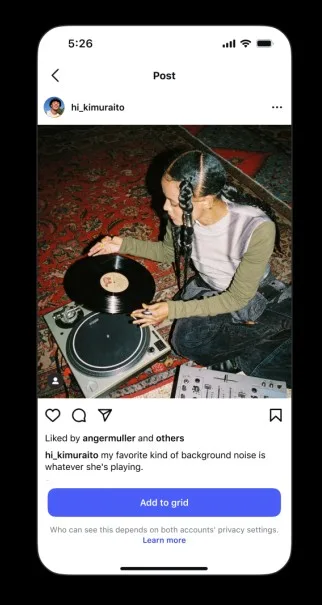
How to Add a Tagged Post to Your Grid
There are three ways to do it, depending on where you’re accessing the post.
Option 1: From the DM notification
When someone tags you in a post:
- Open the DM notification you receive when someone tags you in a post.
- Tap the notification to open the post.
- Select the option to add it to your profile grid.
Option 2: Directly from the post
You can also add a tagged post directly from the post itself:
- Find the post you’re tagged in (via your feed, a friend’s profile, or a share).
- Tap the three-dot menu on the post.
- Choose “Add to your grid” from the options that appear.
Option 3: From your Tagged tab
Or go straight to your profile:
- Go to your own profile and tap the Tagged tab.
- Select the post you want to feature.
- Tap the option to add it to your main grid.
Changed your mind? No worries. Remove the post from your grid, and it simply goes back to living in your Tagged tab. The original post stays exactly where it is.
Why This Matters for Creators and Brands
This might look like a minor Instagram UX update, but there are some useful implications for social media teams.
- Creator collaborations: Creators can showcase content they’ve been tagged in without republishing it or relying on the “Invite collaborators” feature.
- Brand campaigns: When multiple creators are tagged in the same campaign content, each one can add it to their own grid, giving a single piece of content multiple points of visibility across different audiences.
Part of a Wave of Updates
This update comes after several similar Instagram features designed to give users more control over how they experience and manage the platform.
Just to name a few, “Your Algorithm” lets you tweak the type of content you’d like to see, while the June release of “Reorder your grid” lets users rearrange their existing grid content. And “Replace Audio” also lets you swap the music on an existing post at any time.
Together, these updates point to a bigger shift: Instagram is giving creators and social media managers more flexibility to curate their profiles and make better use of existing content, without adding unnecessary publishing work.
How to Work This Into Your Social Media Workflow
The new tagged-post feature can also work nicely with Instagram’s grid management tools. Once you’ve added a tagged post to your profile, you can use Instagram’s Reorder feature to move it into the right position for your overall grid.
And if you’re planning a campaign in advance, this is where Metricool’s Feed Preview can help.
You can plan and visualize where your upcoming content will sit on your grid before publishing. Then, when tagged campaign content starts coming in, you can add the posts to your Instagram grid and adjust the layout without having to rebuild your content plan from scratch.
