

How to Reorder Your Grid on Instagram + Pro Strategy Tips
 Kata
15 June 2026
Kata
15 June 2026 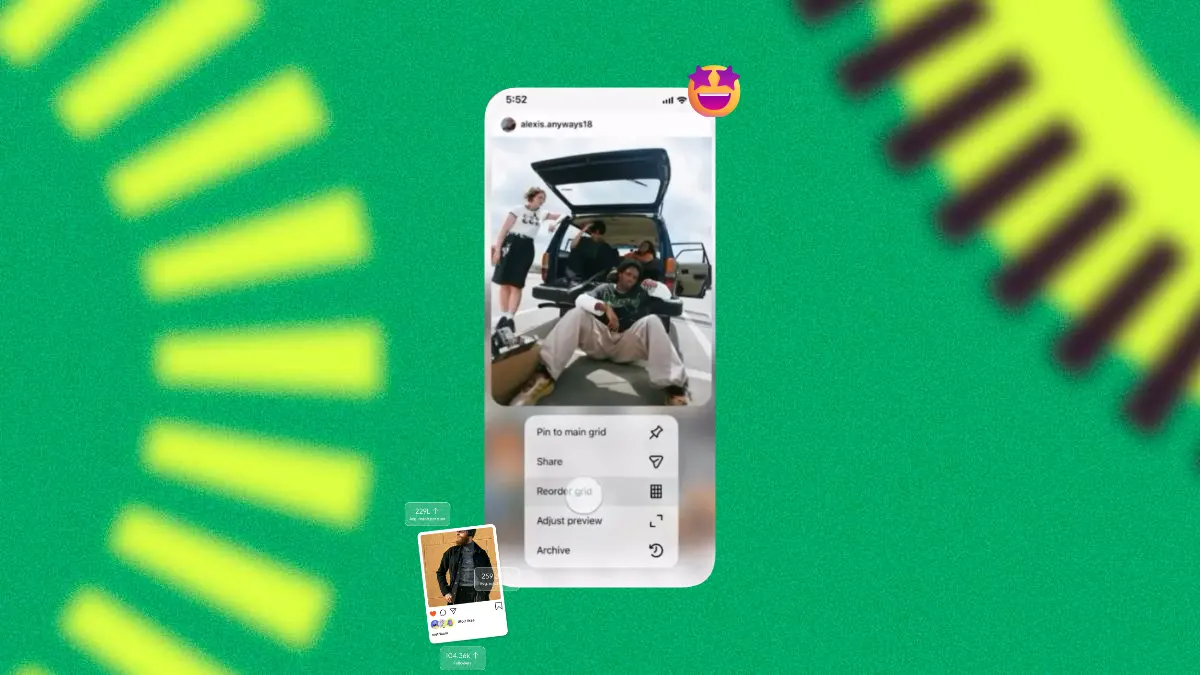
After years of user requests and a brief early test back in 2022, Instagram has finally delivered a full-scale version of grid reordering. The ability to rearrange your grid posts is now live globally for all users. The update follows Instagram’s 2025 shift to a taller vertical grid format, which disrupted many carefully arranged profile layouts and made the case for giving users more control over how their profiles look.
So if you’ve been wondering how to reorder your Instagram grid, you’ll find the answer right here.
Tap, Drag and Drop
Previously, your posts appeared in chronological order. The only way to highlight a post was to pin it to the top (and you could only pin three). Any creator wanting a carefully curated visual layout had to plan posts weeks in advance, or delete and repost older content, sacrificing accumulated likes, comments, and engagement history in the process.
That constraint is now gone entirely. Posts can be moved to any position regardless of when they were originally published. Likes and comments stay attached to the right content. The feed order for followers remains untouched – only the profile view changes.
Here are just a few ways to make the most of this:
- A brand can reorder its Instagram grid around a seasonal theme or a product launch
- That Reel that went viral last summer? Move it to the front.
- Your most aesthetic photos? Group them together for a cohesive look.
- Launching a new product? Make sure your visuals line up just right.
- An artist can pull an older release back to the front row during a campaign anniversary.

How to Reorder Your Instagram Grid
The feature is now live for all users on iOS and Android, just make sure your app is updated to the latest version. Here’s how to use it:
- Go to your profile: Open your Instagram app and head to your profile page.
- Access “Edit Grid”: Tap Edit Profile and select Edit Grid or long-press any post on your grid to find the reorder option.
- Drag and drop your posts: Once in edit mode, drag your posts around until your grid looks exactly how you want it.
- Save your layout: Changes save automatically. You can also undo any actions during the same session if you change your mind.
💡 Pro tip: Use this feature to bump high-performing, evergreen content – like a popular guide or service explainer – to a more prominent position near the top of your feed, so new visitors see your best work immediately.
Adjusting the Thumbnail Preview
When you post Reels, videos, or even photos with varying aspect ratios (like 4:5 or 9:16), Instagram often crops the thumbnail displayed on your profile grid unpredictably. You must manually select the best visual crop.
- For Videos/Reels: Before posting, you select a Cover Photo for the video. Crucially, you can adjust how this cover image is cropped specifically for the profile grid. On the cover selection screen, use the Crop or Adjust option to pan the image until the most important visual element is centered in the 1:1 square that appears in the grid preview.
- For Photo Posts: For photos that aren’t square, Instagram usually forces a center crop in the grid. To maintain a clean look, always try to keep the key visual information of your image within a 1:1 safe zone during the creation phase.
Pinning Posts for Focus
Pinning is a simple, effective, and available tool for controlling your grid’s top three positions.
- Function: This forces three selected posts to remain at the absolute top of your grid, regardless of when they were published.
- Usage: Pin your latest campaign announcement, your best piece of evergreen content, or a powerful introduction video. This acts as a fixed “welcome” message for all profile visitors.
Bonus: Adjust How a Post Looks in the Grid
Want even more control? You can fine-tune how individual posts appear in your grid. Just tap into a post, select the three dots (•••), and choose “Adjust Preview.” From there, you can choose to Fit or Fill the grid space and even tweak the background color if you go with Fit.
Why This Matters to Social Media Managers
As a social media manager, this is an opportunity to approach your grid more creatively. Your grid is your portfolio, it’s often the first thing people see when they visit your profile. Now you get to control that first impression for both existing followers and future followers.
Here’s what you can do with the new grid editing feature:
- Highlight evergreen content
- Curate your visual story
- Guide visitors through a logical content flow
- Repurpose old but high-performing posts without re-uploading them
In other words, use your grid as an additional storytelling tool.
Plan the Perfect Grid with a Feed Preview First
Now that Instagram lets you reorder your grid, you might also be asking: can I preview my feed before posting? Because you don’t always want to fix things after they go live.
Instagram does offer a native preview feature, but it’s currently limited to single posts and not available to everyone yet. For full control right now, Metricool’s Instagram Feed Preview lets you plan your grid in advance – for free.
What you can do with Metricool:
- Plan your grid visually to maintain a consistent aesthetic.
- Identify and fix layout or content errors before publishing.
- Preview your feed across platforms (Instagram, TikTok, X, LinkedIn, Facebook, etc.).
- See desktop and mobile versions to optimize for all screen sizes.
- Perfect for grid-style posting or multi-image compositions.
Whether you’re editing live posts on Instagram or planning ahead with Metricool, you’ve now got full creative control – before and after publishing.
💡 Pro tip: Use Metricool to preview your feed, then tweak your grid directly on Instagram once your posts are live.
How Should You Edit Your Instagram Grid? Strategic Layout Ideas
Before you start posting, choose a layout style that reflects your brand’s content type and frequency. This is the first step in deciding how to change your Instagram grid layout purposefully.
| Layout Style | Description | Ideal For |
| Checkerboard | Alternating between two content types (e.g., photo and quote, or product and lifestyle). | Brands that rely heavily on motivational quotes, text-heavy graphics, or two contrasting color palettes. |
| Row by Row (Horizontal) | Each row of three posts tells a separate, complete story or features a distinct campaign theme. | Brands launching products or running short-term campaigns where the sequence is important. |
| Color Block | Posts are grouped by color or tone to create a stunning, immersive visual experience. | Visual artists, designers, or brands with a very specific, limited color scheme. |
| Vertical Line | The middle column always features a unifying element (like a continuous image or brand color). | Personal brands or educators seeking a constant, recognizable thread to connect disparate content. |
