How to Use Canva’s AI Features for Social Media
 Kata
13 October 2026
Kata
13 October 2026 
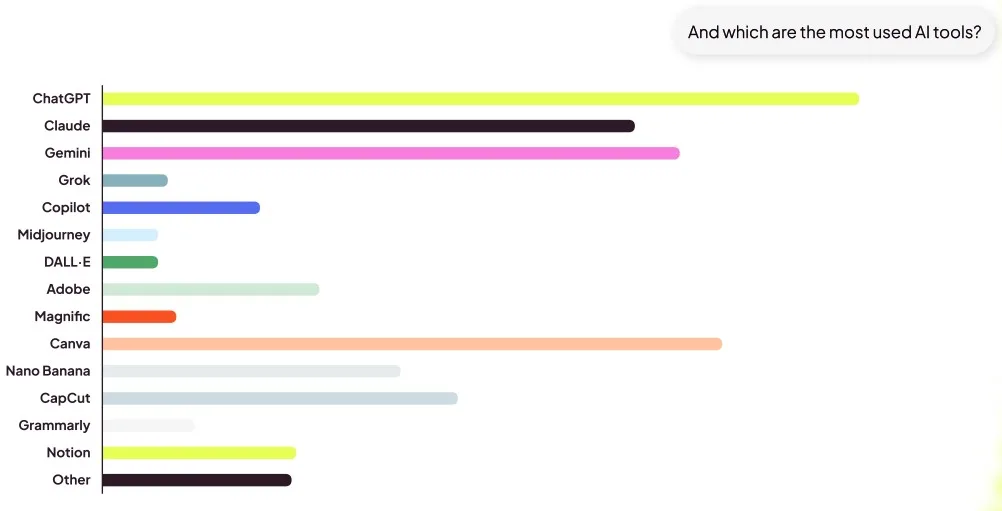
Canva is the most-used design tool among social media pros, according to our 2026 AI Study. Part of what makes it a go-to tool for so many social media teams is its wide range of AI features, formerly known as Canva Magic Studio, which can save you plenty of time when creating content. We’ll jump straight into the AI features, but if you want more insights from our latest report, you can grab your free copy here:
Canva AI: The Home of All AI Features
Canva AI is the umbrella term for Canva’s AI-powered tools. You may still see the older name, Magic Studio, in help articles and older guides, while many individual tools still carry the “Magic” name, like Magic Write and Magic Resize.
With more than 40 AI features covering everything from writing captions to resizing designs and adding animation, there’s a lot to explore. However, not all of them are equally useful for social media, so here’s a rundown of the ones worth your time, and how to use them.
1. AI Social Media Post Generator
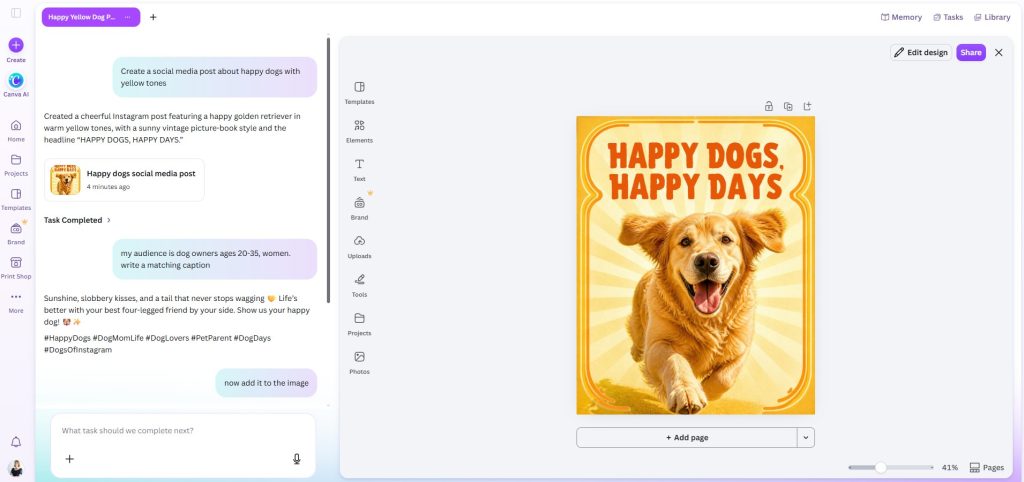
This tool helps you turn an idea into a ready-to-post social media draft. Tell it what you want to talk about and who you’re creating it for, choose your goal like driving website traffic, getting newsletter sign-ups, or simply sharing something useful, and pick a tone.
It’ll then create the copy and visual for the platform you’re posting on, whether that’s LinkedIn, Instagram, or TikTok. In the example below, I chose Instagram, and it created both an image and a caption to go with it.
You can also use it to repurpose blogs, videos, and newsletters into social posts, which makes it much easier to get more out of content you’ve already created.
💡 Pro tip: The more detail you give about your audience and goal, the better the result. And always edit the output so it sounds like you.
2. Canva AI Image Generator
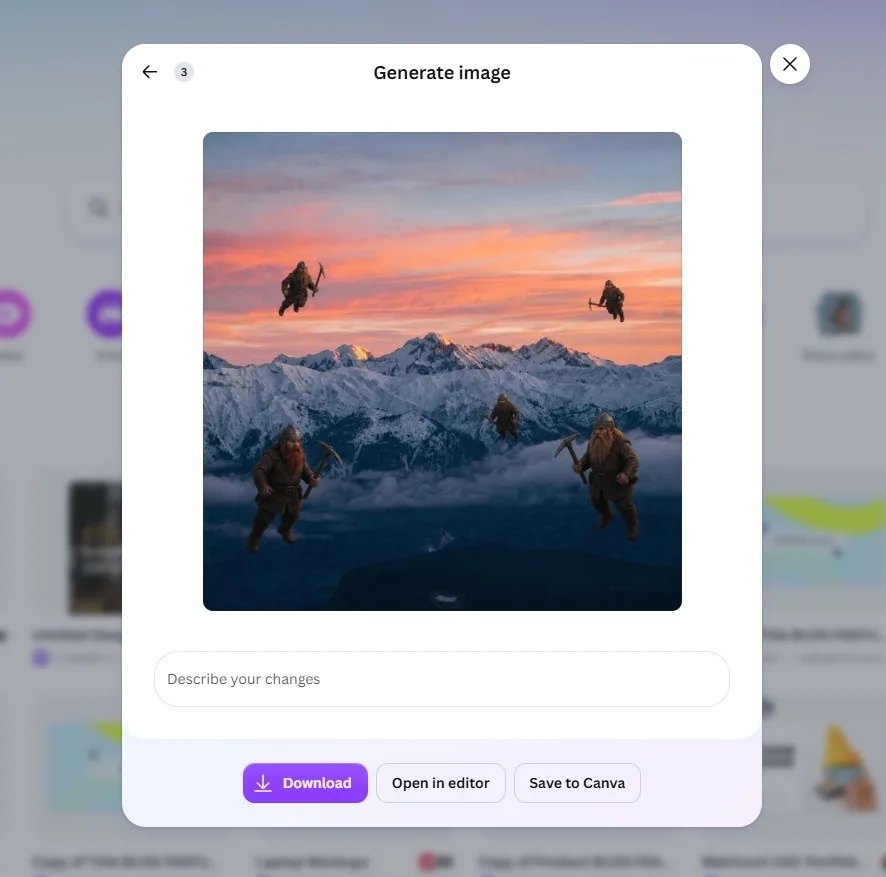
When stock photos don’t fit your post, the AI image generator creates a visual from a text prompt. You can start from a written description or from a reference photo, choose an art style such as Watercolor, Filmic, Neon, Color Pencil, or Retrowave, and set the aspect ratio. It works on web and mobile, and you’ll usually get a few options to pick from. Once you choose one, it drops straight into your design.
Setting the aspect ratio first is handy for social, because you can generate the image already in the right shape for a feed post, Story, or Pin.
How to use it:
- Open a design and find the AI image tool. Canva’s page points to a “Generate AI image” button, though the exact menu path changes as the editor updates.
- Describe what you want: the subject, setting, mood, and colors.
- Pick a style and aspect ratio.
- Choose your favorite option, then edit it with Canva’s design and photo tools.
3. Magic Layers
And now let’s get into the less obvious but still useful features.
AI-generated images can look great, but they’re not always easy to tweak. If you want to change a color, move an element, or fix a typo, usually you need to start over. Magic Layers changes that by turning a flat design into editable layers, so you can adjust individual elements without rebuilding the whole thing.
It works with images created in ChatGPT, Gemini, and Canva’s own AI tools. It’s still in Beta, and each use counts toward your monthly AI allowance.
4. Magic Resize
Creating content for multiple platforms? Magic Resize can save you a lot of time. Create your design once, then resize it for Instagram, Facebook, Pinterest, and more without having to recreate each version from scratch. It’s available on paid plans.
5. Translate
Working for different markets and need to create the same design in another language? Translate replaces the text in your design while keeping the layout intact. Just check Canva’s current language list before relying on it for a specific language.
6. Magic Write
Magic Write is Canva’s AI writing assistant, built right into the editor. Use it to brainstorm captions, headlines, and other short-form copy without leaving your design.
For example, you could ask it for three caption options in different styles (funny, informative, and emotional) and choose the one that fits your brand best.
7. Magic Animate
Canva’s AI feature Magic Animate adds movement to a static design without making you build every animation yourself. Turn a simple announcement graphic or carousel into eye-catching motion content in just a few clicks.
8. Photo Editing Tools
When a photo is almost right, these tools handle the cleanup:
- Magic Eraser: removes unwanted objects from a photo
- Magic Expand: extends an image beyond its borders, useful for fitting a photo into a new aspect ratio
- Magic Edit: swaps elements using a text prompt
- Background Remover: isolates a product or person
⚠️ If you use AI-generated images for brand or client work, check the licensing terms first.
9. Auto Captions
If you’re creating video for social media, captions are a must. Plenty of people watch with the sound off, and captions also make your content more accessible.
Canva’s Editable Captions automatically transcribe the speech in your video and add it as on-screen text. You can then edit the wording, adjust the timing, and customize the font, colors, and style to match your brand.
💡 Pro tip: Always give your captions a quick once-over before publishing. Clear audio usually gets better results, but background noise, music, and unclear speech can still trip the tool up. If Canva picks the wrong spoken language, you can set it manually.
One thing to note: Canva has a few different caption features, and they don’t all work the same way. Editable Captions are available on both desktop and mobile, while Canva’s separate view-only accessibility captions can’t currently be downloaded or edited.
Free vs. Pro: What Do You Get?
Canva Free gives you limited access to some AI features. Many of the tools that save the most time, like Magic Resize, Magic Animate, Magic Layers, Brand Kit, and scheduling, are part of a paid plan. Canva has also changed its AI allowances several times this year, so check the latest pricing and plan details before you sign up.
From Canva to Scheduling: Metricool
Canva handles the creative side. But once your design is ready, you still need to get it in front of the right people at the right time, and see how it performs.
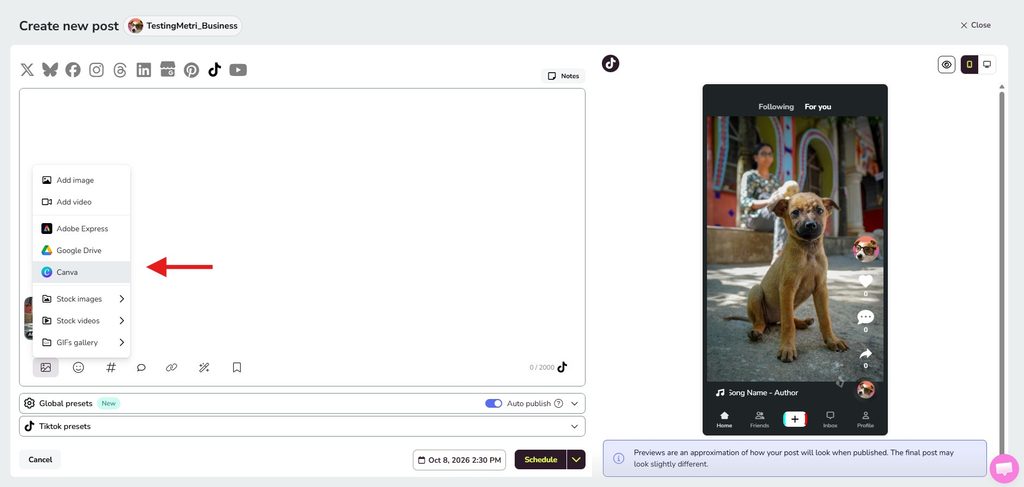
With the Canva and Metricool integration, you can send your design straight from Canva to the Metricool scheduler. Click Share and select Metricool. From there, you can add your caption, tags, and location, choose when to publish, and then track the results in Analytics.
If you have a Metricool account, you can also pull files from Canva directly into the scheduler and schedule them in one go.
Create in Canva. Plan, publish, and analyze with Metricool.