

Try This Social Media Post Approval Tool & Stop Chasing Clients for Feedback
 Kata
29 June 2026
Kata
29 June 2026 
A trend is taking off and your post is ready to go live. Timing is everything, but you can’t reach your client for approval. Sound familiar?
Or maybe you’re still sending screenshots in a document and waiting for sign-off. And that document gets buried in an overflowing inbox, feedback takes forever to arrive, and your content calendar starts slipping behind. You know there’s an easier way to manage approvals, you just haven’t had the capacity to find the right tool yet.
Metricool has a built-in social media approval tool designed to avoid exactly these situations. Here’s how an automated approval workflow keeps your content moving without the endless back and forth.
What is a Post Approval System?
It’s a built-in feature that lets you send posts for review before they go live. Instead of chasing clients over email or Slack, you assign roles, send content for review, and wait for a thumbs up or thumbs down – all inside the same tool you use to plan and schedule content.
User Roles: Who Does and Sees What
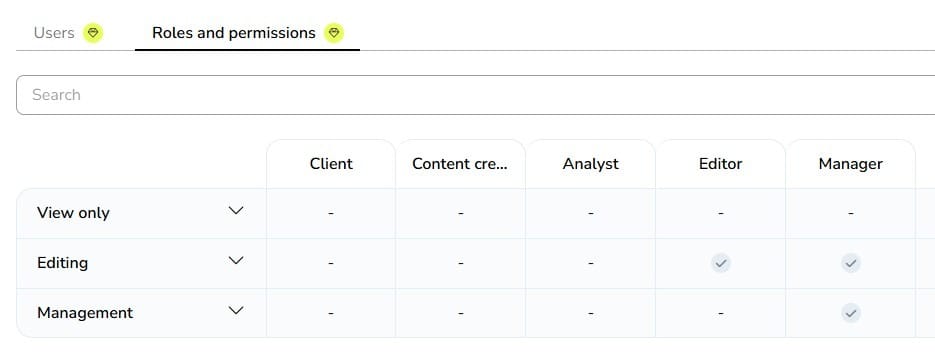
Before diving into how the workflow runs, it helps to understand who plays what role in the process. This social media approval tool works around two main roles:
- Client: Can approve or reject posts.
- Content Creator: Can create and edit posts, but must send them through the approval system before they go live.
This separation is key for agencies. Your team does the creative work; the client has final say on what gets published, so there’s no overstepping or confusion.
Beyond these two core roles, Metricool gives you three additional roles to choose from:
- Analyst
- Editor
- Manager.
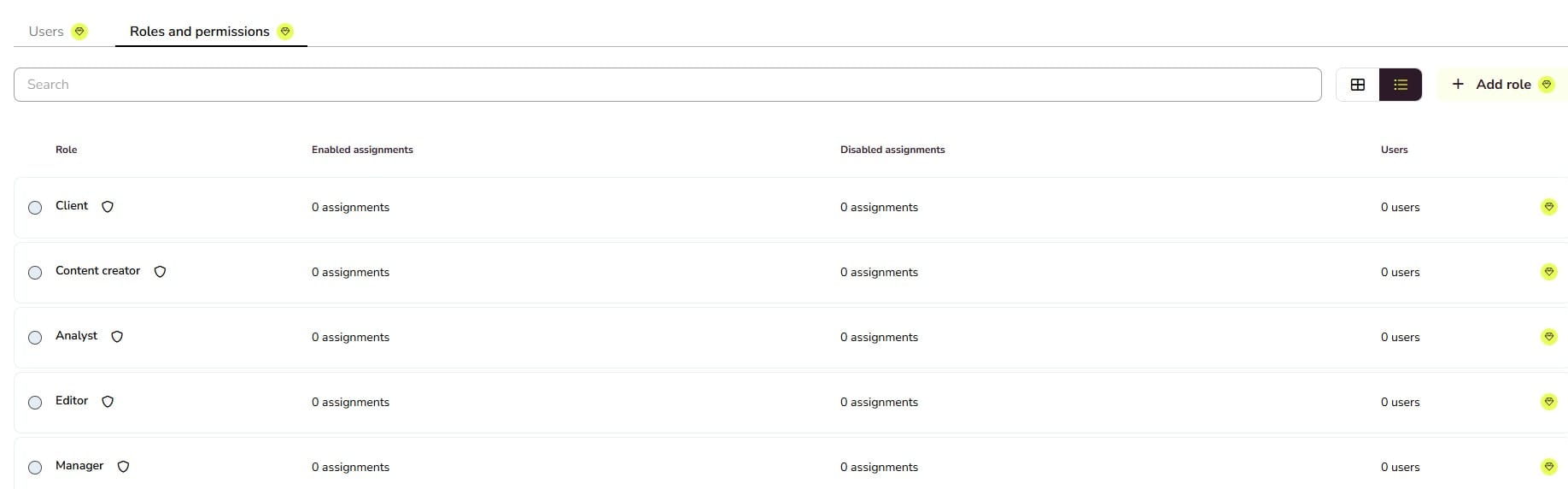
And if none of these fit your exact setup, you can create fully custom roles by clicking on “+ Add role” and assigning specific permissions.
The permission most relevant to approval workflows is “Schedule pending review”. Assign this to any team member and their posts will automatically require approval before publishing, with no way to bypass it.
You can also assign a user a different role per brand, which is useful if a team member needs full access for one client but limited access for another.
How to Set Up User Access
Before you can send posts for review, you need to grant the right people access. Here’s how:
1. Click the three horizontal lines in the top-right menu and select User Management, then click Add User.
2. Enter the user’s email and click Continue.
3. Select which brands they should access and assign a role. You can assign a different role per brand.
4. Choose whether to send them an email notification and click Add User to confirm.
Important: User Management is only available on Advanced or Custom plans. Free and Starter plans include single access only. That said, if you share a brand with someone who has a free Metricool account, they’ll still have access to premium features within that shared brand, they’ll just see an “Upgrade” prompt elsewhere in their account.
How Does the Post Approval System Work?
With your team and clients set up, you’re ready to run your first approval workflow. Here’s how it works step by step.
Step 1: Create your post and send it for review
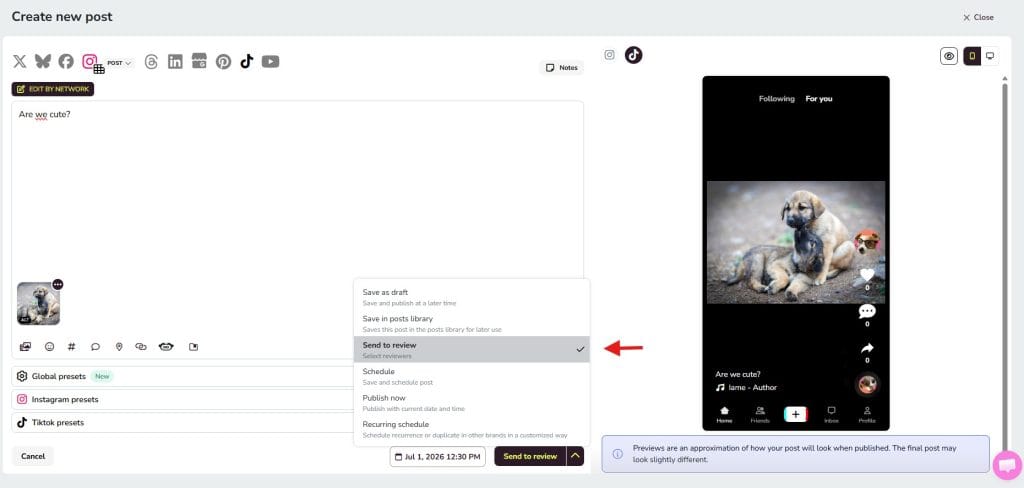
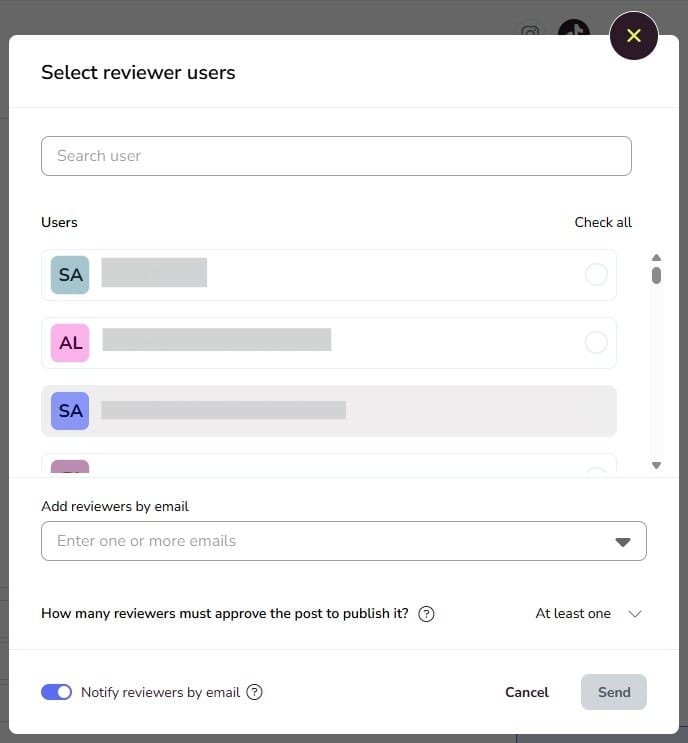
From the Planner, create your post as usual. Instead of scheduling it directly, click “Send to review”. You’ll then select which users need to review it. You can add Metricool users or (and this is a big one for client work) add anyone by email, even if they don’t have a Metricool account. Your client doesn’t need to sign up for anything.
You can also toggle email notifications on or off for each reviewer, so you’re not spamming inboxes unnecessarily.
Step 2: Set your approval criteria
This is where it gets even smarter. You can choose from three criteria for what counts as approved:
- No reviewer required: The post publishes as long as nobody rejects it.
- At least one reviewer: One approval is enough to publish, but one rejection blocks it.
- All reviewers: Every single reviewer must approve before the post goes live.
One important rule across all three: if even one reviewer rejects the post, it won’t be published. Full stop. Rejection always takes priority.
Once sent, the post appears on the calendar with a yellow “Pending approval” status so you always know where things stand.
Step 3: The client reviews
Your client receives an email with the post to review. They can approve it (turning it green on your calendar) or reject it with the option to leave a note explaining why. No login required on their end if they’re an external reviewer.
Step 4: Handle rejections without the back-and-forth
If a post gets rejected, Metricool emails you automatically with the rejection note attached. You can also find all rejected posts under My Tasks > Rejected tab, where you’ll see the feedback, edit the post, and send it for review again.
Managing Multiple Posts at Once
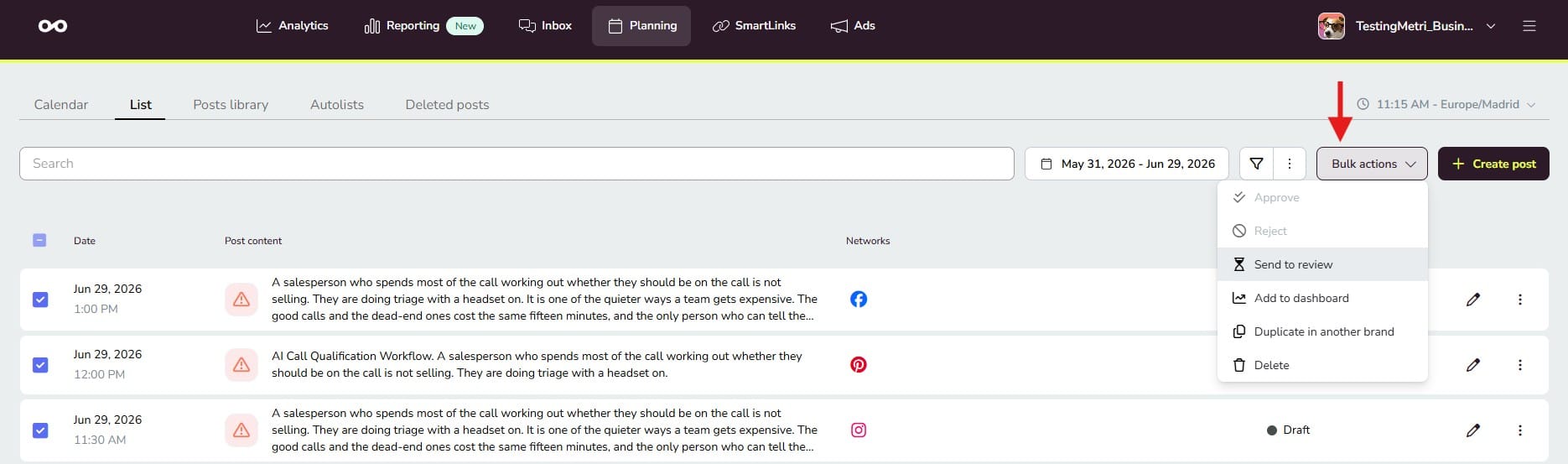
If you’re running campaigns for multiple brands, bulk management is a lifesaver. Under Planning > List > Bulk Actions, you can approve, reject, or send multiple posts for review in one go, rather than opening each post individually.
Posts assigned to you for review also live in My Tasks, so you always have a clean list of what needs attention without digging through the calendar.
Why Agencies Should Care
Put it all together and here’s what this workflow actually changes for your agency day to day:
- No more chasing: Clients get an email, review at their own pace, and you get notified the moment they act.
- Granular role control: Give each team member and client exactly the level of access they need.
- No Metricool account needed for clients: They review and approve straight from their inbox.
- Full audit trail: Every approval, rejection, and note is logged on the post, so there’s never a “but I never approved this” conversation.
- Nothing goes live without sign-off: The system enforces it, so human error or a missed message can’t accidentally publish unapproved content.
- Mobile-friendly: The approval system is also available on the Metricool mobile app, so clients can approve on the go.
Plan Requirements
Everything described in this article (the approval workflow, user roles, and bulk management) is available on the Advanced and Custom plans. If you’re managing multiple clients, it’s the plan built for the way agencies work.
