

Google Business Profile Reports: Your Business Stats in a Personalized Report
 Kata
11 June 2026
Kata
11 June 2026 
There are different ways to create Google Business Profile reports – from your own listing to using external tools to build reports with the insights that matter most to you. In this article, we’ll walk you through the different options so you can decide which works best for you.
How to Download Insights from Your Google Business Profile
There are several options. Here’s a breakdown of each:
1. From the Google Business Profile Main Panel
STEP 1: Access your Google Business Profile panel and select the business you’d like to gather stats for. Click Insights from the action menu and a new window will appear.
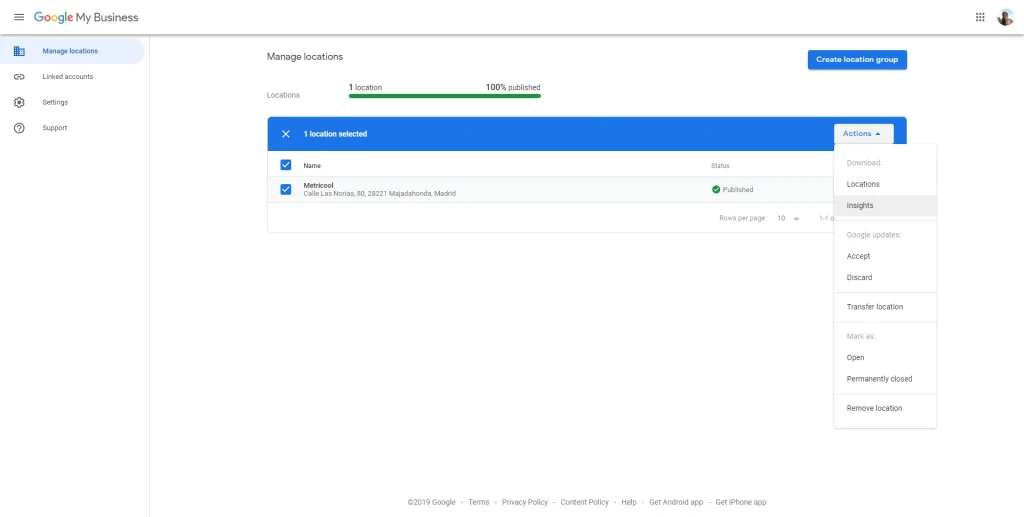
Choose one of the options you want to include in your report. Note that you can only select one at a time.
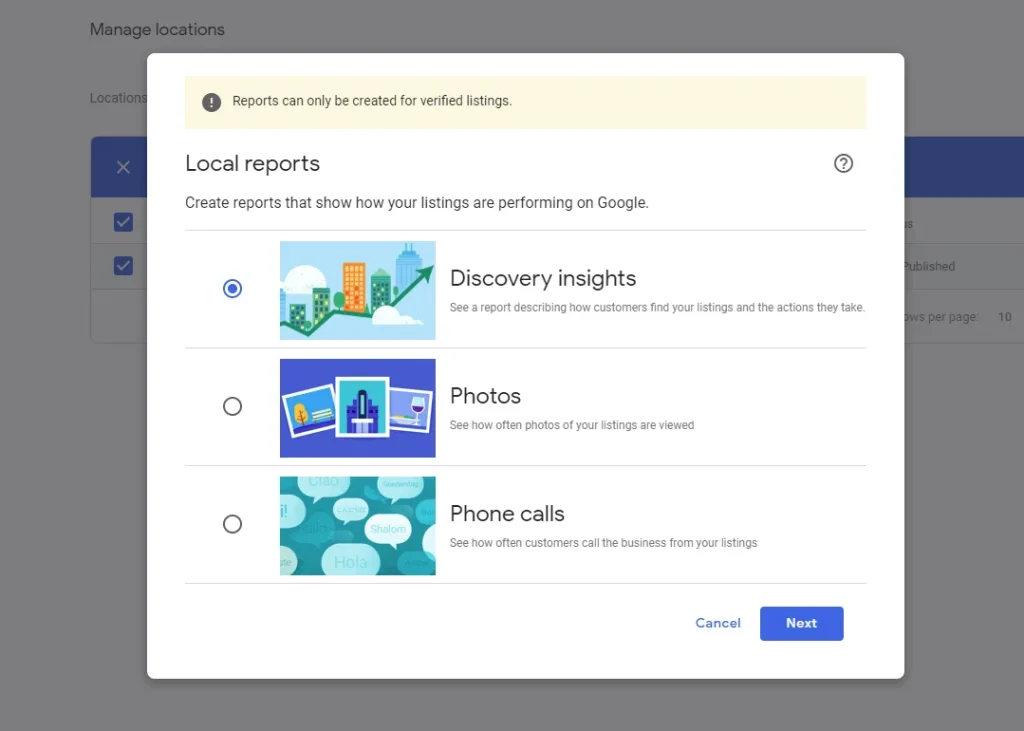
STEP 2: Choose the timeframe you want to view and download.
STEP 3: You’ll receive a CSV file with all the data for the selected period.
❌ Disadvantages of this method
- Reports only cover one data type at a time: discovery insights, photos, or phone calls – not all together
- No visual elements
- Maximum time range of 90 days
▶️ Method 1 score: 4 out of 10
2. Insights from Your Google Business Profile Dashboard
With this method you get a snapshot of your main insights directly from your listing rather than a formal report. You can select a timeframe and access graphs covering:
- How customers discover your business
- Which keywords they use to find your listing
- How many people took an action
You have two options to turn this into a report:
- Export the data as a CSV file
- Copy and paste screenshots into a presentation
This option at least comes with visual graphs, making it easier to communicate performance at a glance.
❌ Disadvantages of Method 2
- Can’t generate a report automatically
- Can’t edit it directly. You’ll need to build your own presentation from screenshots
- Maximum time range of 90 days
▶️ Method 2 score: 5 out of 10
3. Create a Google Business Profile Report with Metricool
This is where things get easier. Metricool is an all-in-one social media management platform trusted by over 4 million professionals, and its reporting features go well beyond what Google’s native tools can offer.
Once you’ve connected your Google Business Profile to Metricool, you’ll have access to a fully customizable report with all your key insights presented visually.
Here’s how to generate your report:
Head to the Analytics section in your Metricool dashboard, scroll to Reports on the left side, and select Google Business Profile. From there, configure your report with the following options:
- Period: analyze data month by month and compare it to the previous period
- Language: choose from over 10 languages
- Template: use a saved template or build your own (available on Advanced and Custom plans)
- Sections: choose which metrics and networks to include
- Logo: add your brand or client’s logo for a professional finish
- Format: download in PDF or PPT for easy sharing or editing
- Automatic delivery: schedule monthly reports to be sent automatically to you, your client, or your team

And crucially: there’s no 90-day limit. You can generate six-month or annual reports whenever you need them.
✅ Method 3 advantages
- All insights in one place, presented visually
- No time range restrictions
- Fully customizable with your branding
- Automated monthly delivery by email
▶️ Method 3 score: 9 out of 10
Going Further: Three Ways to Report with Metricool
Standard reports are just the beginning. Metricool now offers three reporting options, each suited to a different need:
Standard Reports
The classic option described above. Automated, customizable, and available in PDF or PPT.
Campaign Dashboards
If your Google Business Profile activity is part of a broader marketing campaign running across multiple platforms, Campaign Dashboards let you group all related content and ads together and analyze everything in one place. Instead of switching between tools to piece together results, you tag content to a campaign while scheduling and Metricool combines the data automatically. AI support then helps you interpret what worked.
Metricool Studio
AI-powered reports generated from a simple question. No templates, no manual setup. Just describe what you want to know and Metricool Studio finds it in your data, builds the visuals, and gives you clear next steps.
For example, you could ask:
- “How has my Google Business Profile performance changed over the last six months?”
- “Which days of the week drive the most profile visits?”
- “Compare my Google Business Profile reach with my Instagram performance this quarter.”
Reports from Metricool Studio can be shared via a public link (no login needed for whoever receives it) and update automatically, so there’s no rebuilding from scratch every time.
Metricool Studio is currently available as a free add-on, with plans to become a paid feature for Starter and Advanced plans.
Which Method Is Right for You?
If you just need a quick data export, Google’s native tools will do the job. But if you’re managing a business (or reporting to a client) you need something that saves time, looks professional, and tells a story with the data.
That’s exactly what Metricool is built for. Standard reports for your monthly routine, Campaign Dashboards when you need the full picture across platforms, and Metricool Studio when you want answers fast without building a report from scratch.
Create your free Metricool account and generate your first Google Business Profile report:
