



Product Updates November 2026
 Kalum
24 November 2026
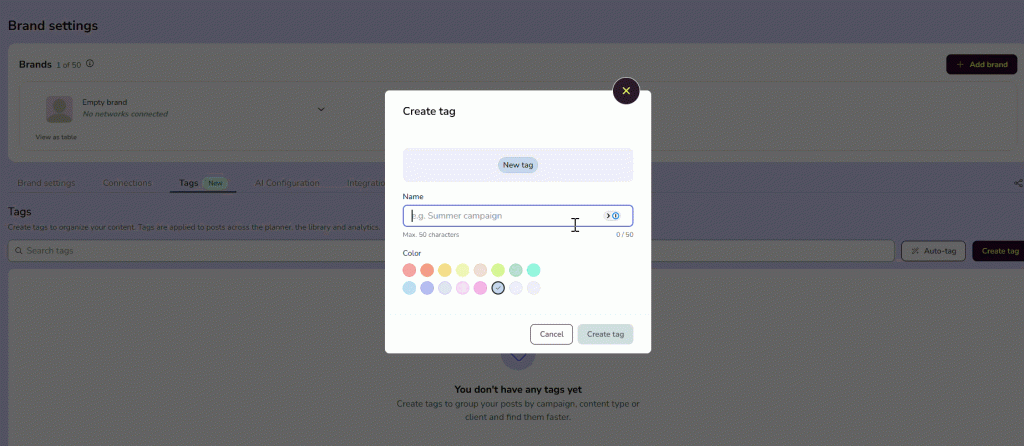
Tags: Organize your posts with tags
You can now label your posts with tags you create, each with a name of your choice and an optional color to spot them faster.
- Organize your content by campaign, client, content type, or anything else you work with.
- Find any post in seconds with the tag filter.
- Analyze your content by tag, as they carry over to Analytics when a post is published.
Create tags in Brand settings, or on the spot from the Planner, the Post library or Analytics.
With the Advanced Analytics add-on, you can also build Campaign Dashboards from tags and use Auto-tag with AI to label the posts that match a description you write.
Team members: Give your team access to every brand
Your brands and your team now live together in one organization, and there are two ways to add people to it:
- Team members: Their role applies to every brand in your organization, including the ones you add later, and with the right permissions, they can add brands, manage roles, and invite people.
- Collaborators (previously Users): Their roles still apply only to the brands you select, and their access stays as it is today.
You’ll find team members and collaborators in User management, and everything about your organization in Organization settings. Team members are available on Advanced plans.
Flows: Available as an add-on
Flows, the automation that replies for you on Instagram, TikTok and X, is now available as an add-on. Each add-on gives you 2,500 executions a month (one execution is one flow that fires and replies), shared across all your brands and every network with Flows.
Other Flows updates:
- Collapsible preview in analytics: The Flows analytics screen now shows a preview of your flow. Keep it open, or close it to give the tables their full width back.
- Clearer execution history: When a flow stops being active partway through, for example because it went back to draft, its unfinished executions now close and show “Flow not active” in your execution history, so you can keep better track of what’s still running.
- See which post each flow runs on: The Flows list and each flow’s analytics now show the post or story it runs on, with a thumbnail, the start of the text, and the date. A “Scheduled” tag appears if it isn’t published yet. In analytics, click it to open the post with a link to the network.
Organization Settings: Connect Metricool to Slack
Get your brands’ notifications in the channels where your team already works: social media approvals, notes, and publishing updates. Each brand can have its own channel, and you choose which events it sends from the brand’s settings.
Find it in the Integrations tab of your Organization Settings. Owners and anyone with the Manage brands permission can connect, disconnect, or delete a Slack workspace.
Campaign Dashboards: Edit your dates after you create them
Edit the start and end dates of a Campaign Dashboard from its edit screen, even while your campaign is still running. If the new dates leave some content out, you’ll see a heads-up before you confirm. You can edit dates any time the dashboard isn’t syncing or categorizing your posts.
Metricool Studio: Compare your Instagram with accounts your size
See where your Instagram results land, in percentiles, against accounts your size, based on the 2026 Instagram Study.
Ask Metricool Studio directly, or use the “Compare your Instagram with accounts your size” template. From Instagram Analytics, go to Create comparison view > Instagram Study 2026, and Metricool Studio opens with the prompt ready.
Planner: More control while you create posts
- Manage your media: When a post has more images and videos than fit in the editor, you’ll see a few thumbnails and a button to view all of them at once. It opens Manage media, a grid where you can add files, select and delete several at once, and reorder them by dragging.
- Notes next to your preview: Notes now live in the right panel when creating a post, in a tab beside Preview. Preview opens by default, and you can switch to Notes whenever you need them.
- Tag people in X videos and GIFs: Tag up to 10 people in X posts with a video or GIF, the same way you do with photos.
- Flag your Pinterest content as AI-generated: Pinterest settings in the Planner now have an “AI-generated content” toggle for image and video Pins. You can also indicate if a Pin includes an AI-generated person.
- “Today” button: The button that takes you back to the current period in your Calendar now always says “Today.” Only the label is new, and it works the same as before.
Analytics: See YouTube video descriptions
The YouTube post list in Analytics now shows each video’s description under its title.
Brand Settings: Set a default time for new posts
Choose a default time for new posts in Brand Settings. Posts you create from the Create button open at that time: today if it hasn’t passed yet, otherwise tomorrow. Clicking a slot in the calendar still uses that slot’s time, and if you don’t set a time, nothing changes.
If you’ve got questions about your account or Metricool, check out our Help Center or hit us up in the chat.
Remember that you can always send your feedback; we really read it all! We use it to decide our next steps